
View and Manage User
Admin users can manage and create users in the Psychometric Console by setting up the permissions, as per their requirements.
Follow the steps below to view the User list page:
- Click Users on the left side menu.
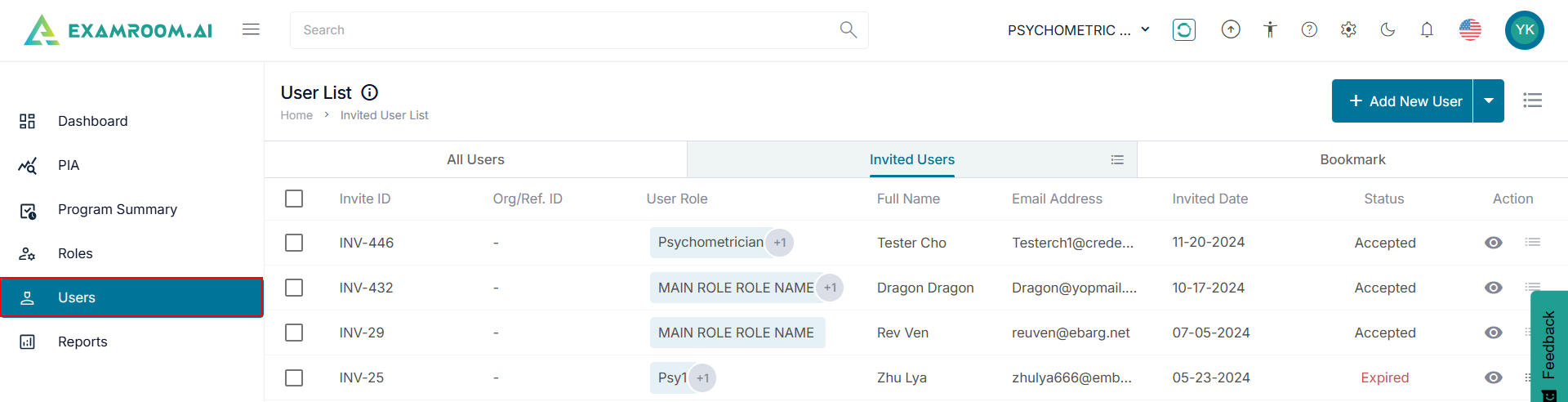
- On the User List page, you can view All Users, Invited Users, and Bookmark.

Edit User
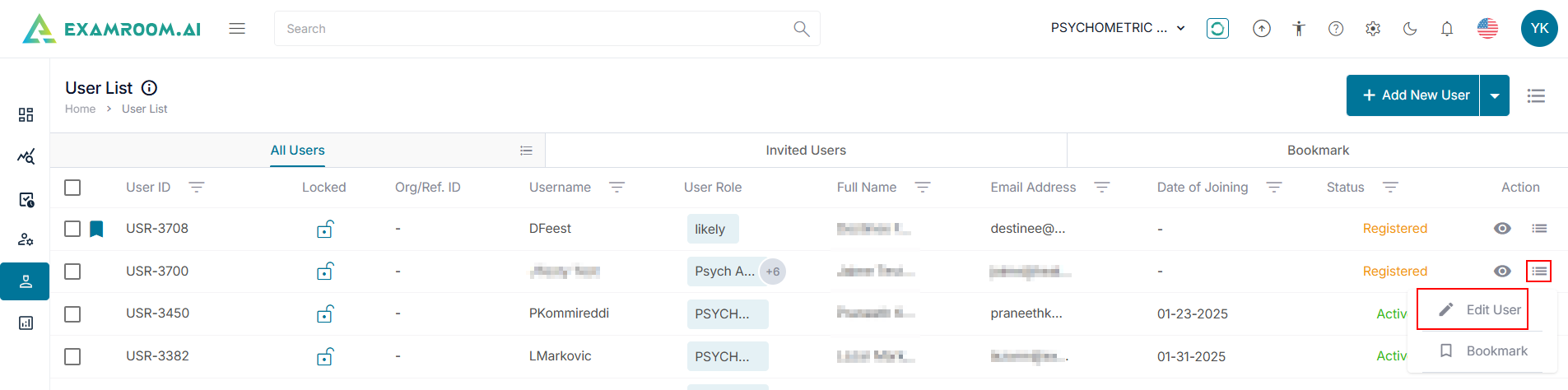
- To edit a user, click the
icon in the Action column for a User ID.
- Click Edit User.
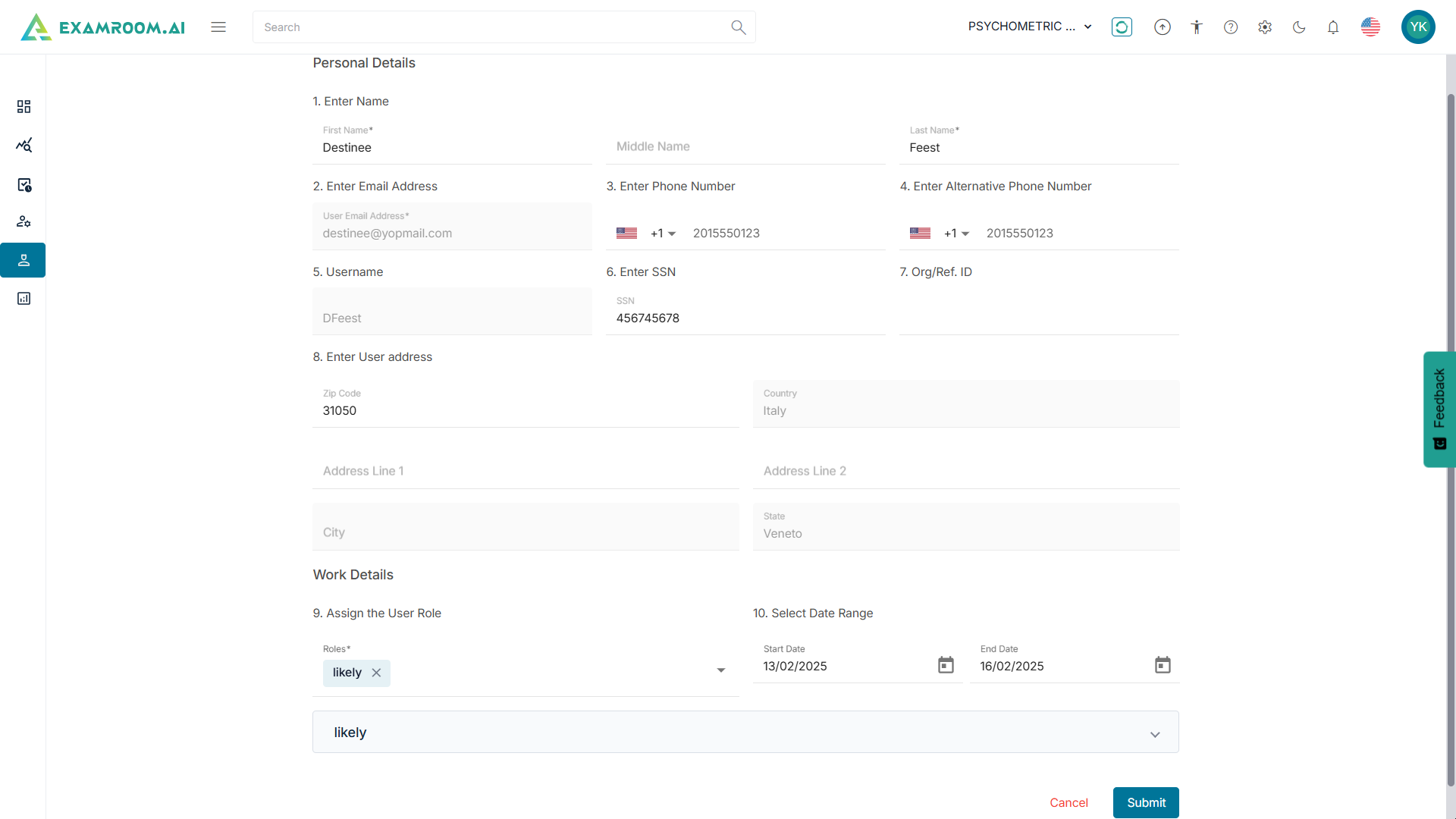
- Edit the user information including First Name, Last Name, Phone Number, SSN, Zip Code, Address Details, User Role, and Date Range.
- Click Submit to save and update. Otherwise, click Cancel to exit without saving.
All Users
The All Users tab displays the existing roles in the console. 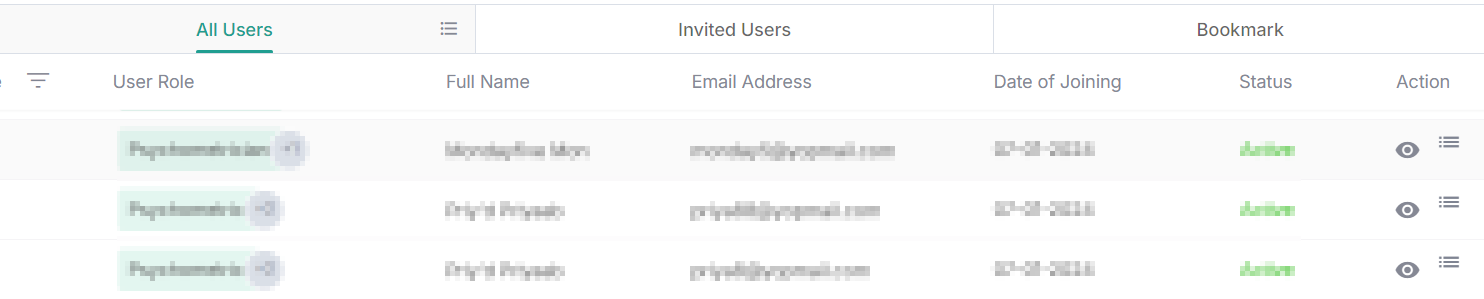
- User ID: Unique ID generated when a user is created.
- Org/Ref ID: Organization or reference ID.
- Username: Username of the ID created.
- User Role: Role assigned to the user.
- Full Name: Full name of the user.
- Email Address: Email address of the user.
- Date of Joining: User’s date of joining when the password was created.
- Status: Status of the user:
- Active: When the user is logged in.
- Inactive: When the end date expires or when they are made inactivate.
- Registered: When the user creates a password.
- Action: Where you can
View,
Edit,
Bookmark, and
Unbookmark the user.
Note: On the Bookmark tab, use the below option to customize the User list:
- Click the
icon the right of All User and select the required check boxes to view the Customize Display of the table items.
- In the Username column, click
Filter and enter the username to search the users in the table.
- Click the
View icon to view the user’s details.
- In the Action column, click the
icon menu to expand the options Edit User and Bookmark.