Add IP Restriction
To add a new IP address or new IP restriction, follow the steps below:
- Click
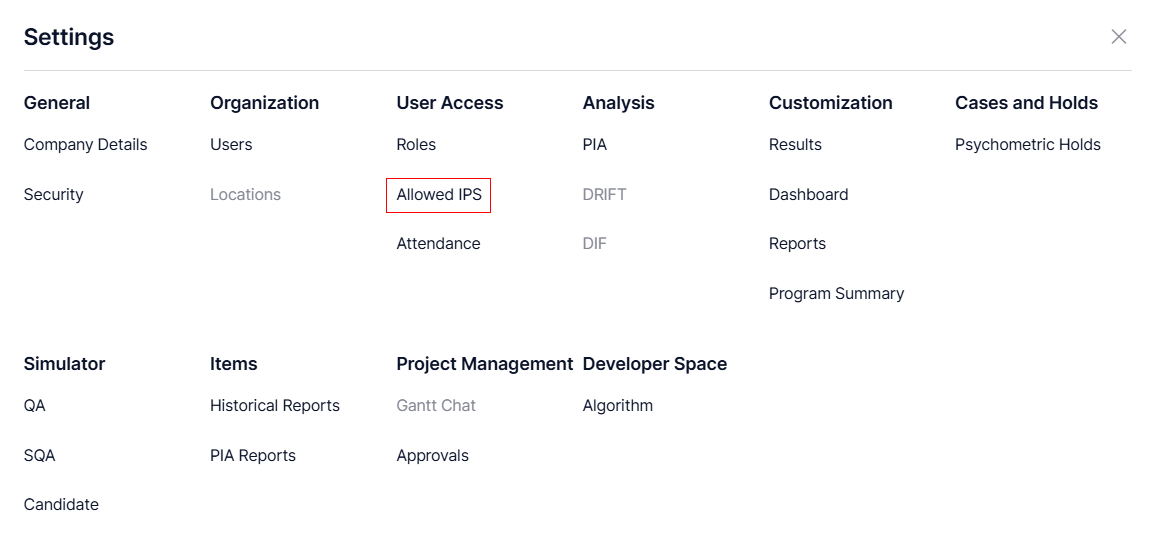
Settings from the toolbar provided at the top of the screen.
- Click on Allowed IPs options under user Access.
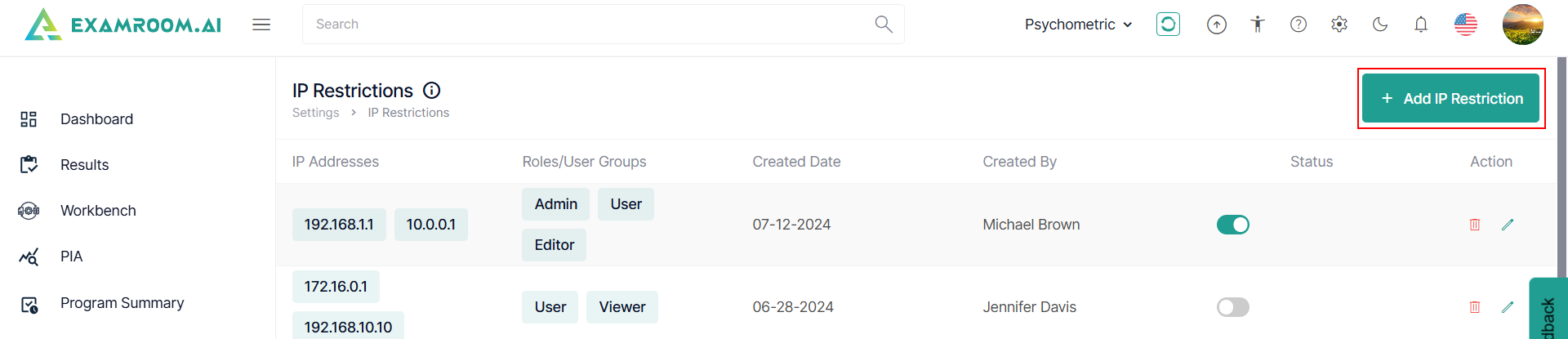
- Click +Add IP Restriction to add a new restriction.
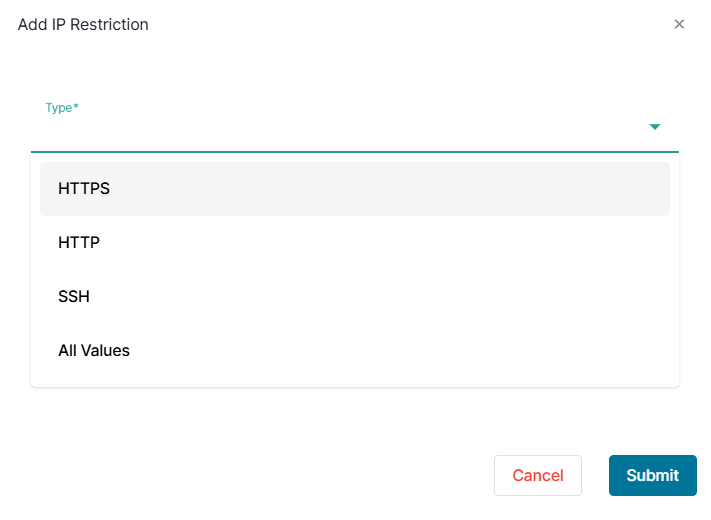
- Select the Type from the dropdown list.
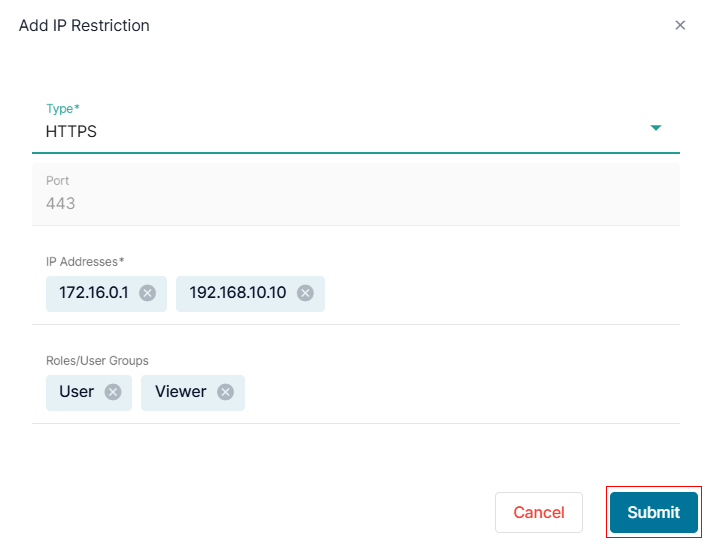
- Enter the IP address in the IP Addresses field. If you want to add multiple IP addresses, enter each one and press enter before moving on to the next.
Note: Ensure you have the list of IP addresses from the network that you want to allow access for roles/User Groups to the platform. - Enter the role/user of the IP address in the Roles/User Groups field. If you want to add multiple Roles/User Groups, enter each one and press enter before moving on to the next.
- To save and submit the data, click Submit. To exit without saving and submitting the data, click Cancel.