Saved Queries
View and Manage Saved Queries
View and manage queries written and saved in SQL Lab for future reference and quick access to rerun previously used SQL queries without rewrite.
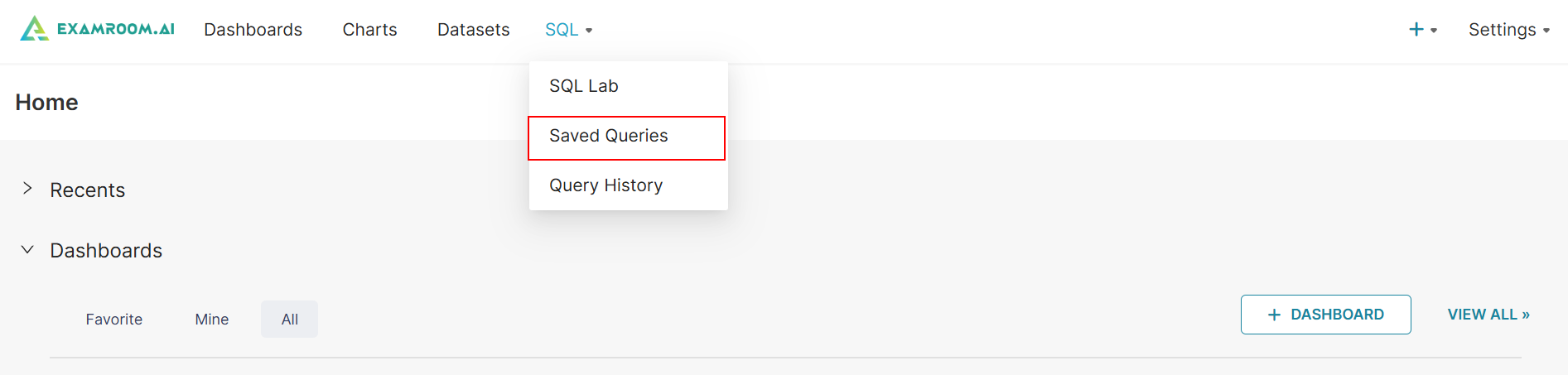
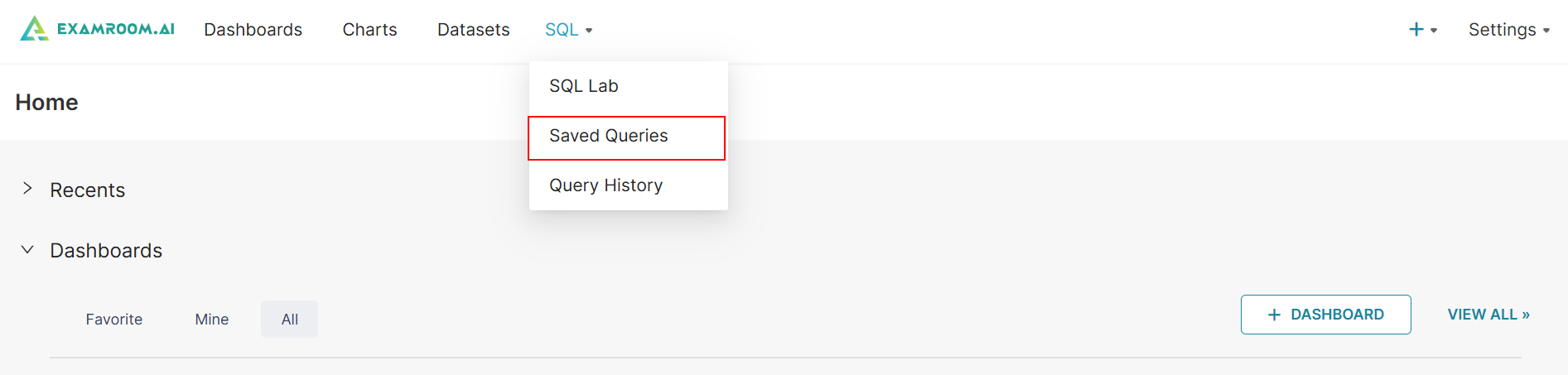
- Click SQL in the toolbar and select SQL Lab from the dropdown list.
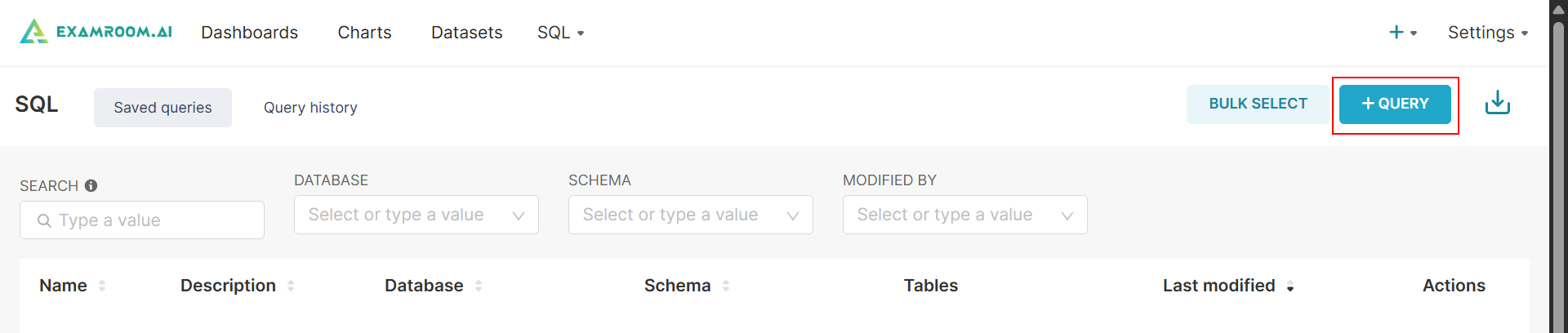
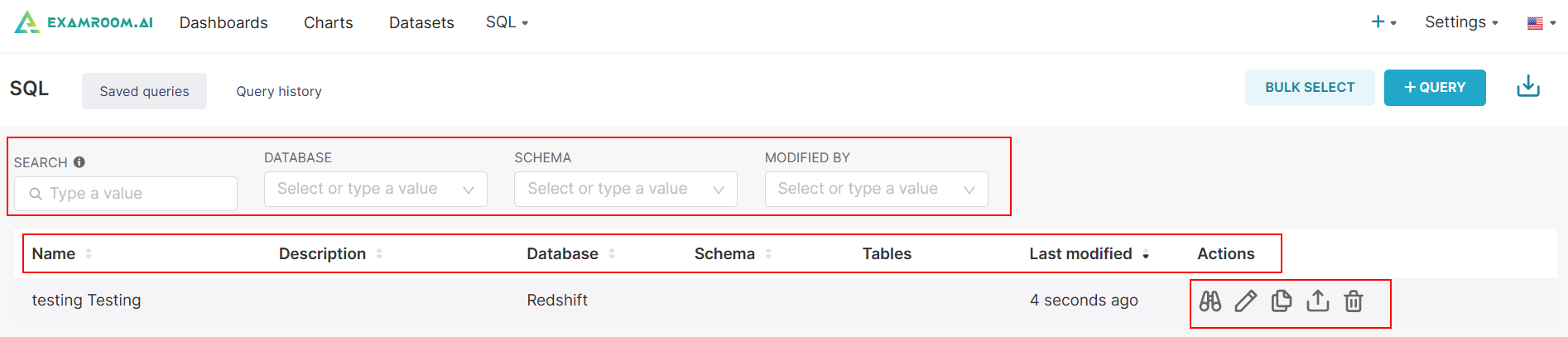
- Search or filter the list by entering the Name or by selecting the Database, Schema, and Modified By.
- Search and filter data by the following columns:
- Name: The title or identifier of the saved query.
- Description: A brief summary or notes about the saved query.
- Database: The database associated with the saved query.
- Schema: The schema in which the query operates or pulls data from.
- Tables: The tables referenced or involved in the saved query.
- Last Modified: The date and time when the saved query was last updated.
- Actions: Available operations to manage Preview, Edit, Copy, Export, and Delete query.
- Under the Action column, you can perform the following activities:
Query Preview to view the query saved.
Copy Query URL to copy the query URL.
Delete the saved query.
Export the saved query into a CSV file.
Edit to edit the database.
- To edit the query in SQL Lab. For more information, refer to Section 3.1.1 SQL Lab.
Add a New Query
- Click SQL in the toolbar and select SQL Lab from the dropdown list.
- Click QUERY to create a new query.
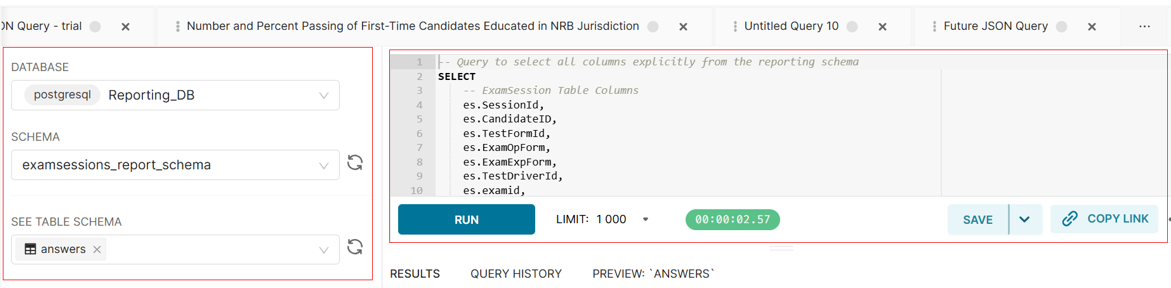
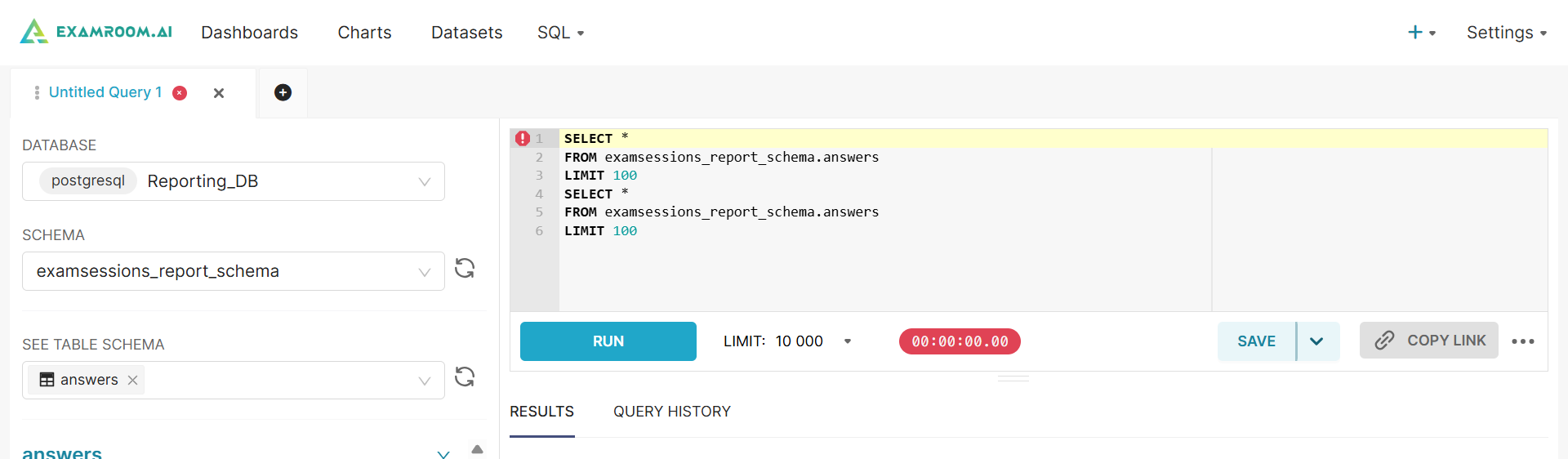
- Select the Database, Schema, and See Table Schema from the dropdown menu.
Note: Based on the database, you can view the schema and examine the table structure, which is already integrated with the database. - Add queries in the query section located on the right side of the screen as needed.
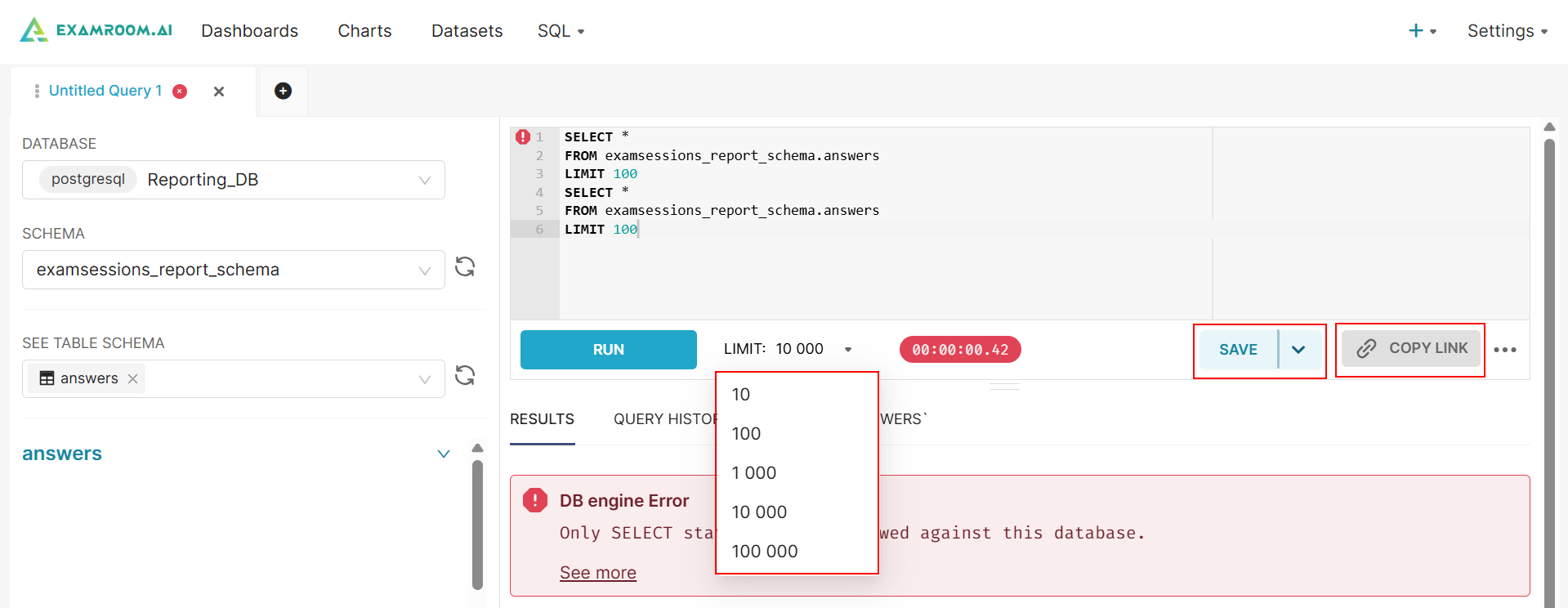
- Click Run to run the query.
- Set the query limit if required to control the maximum number of records returned by the query, ensuring better performance and resource management.
- Click Save and view the query in the saved query list. For more information, refer to Section 3.2 Saved Query.
- Click Copy Link to copy the query link.
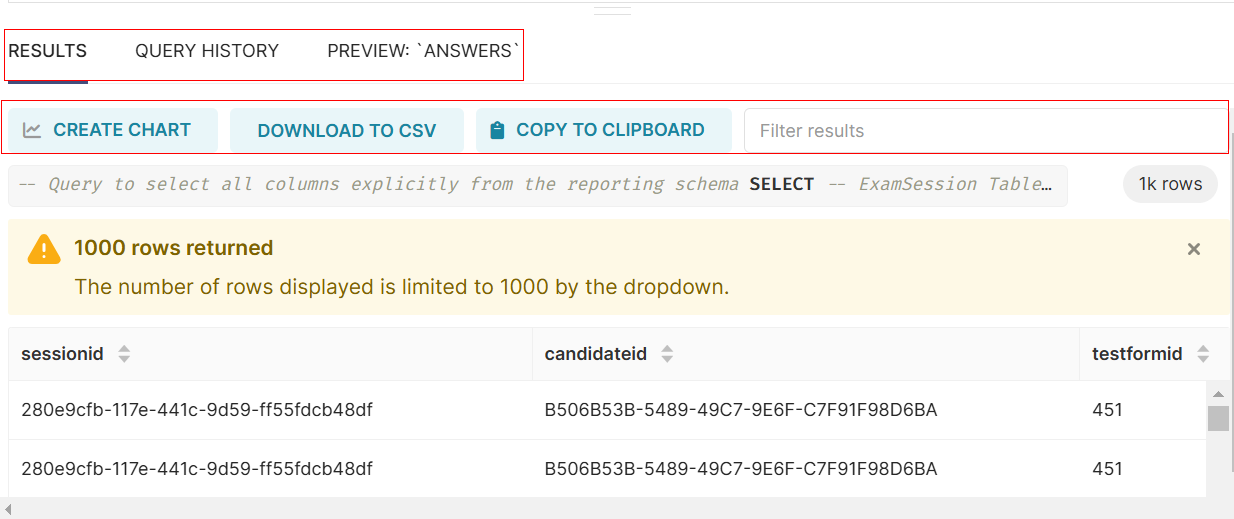
Note: After running the query, you can view the results, query history, and a preview of the executed query. - For refined analysis, click Results, Query History, and Preview tabs.
- Click RESULT to view the result of the executed query, including create chart, download to csv, and copy to clipboard.
- CREATE CHART: Add a chart based on the executed query results.
- DOWNLOAD TO CSV: Download the query results in CSV format.
- COPY TO CLIPBOARD: Copy the query results to your clipboard.
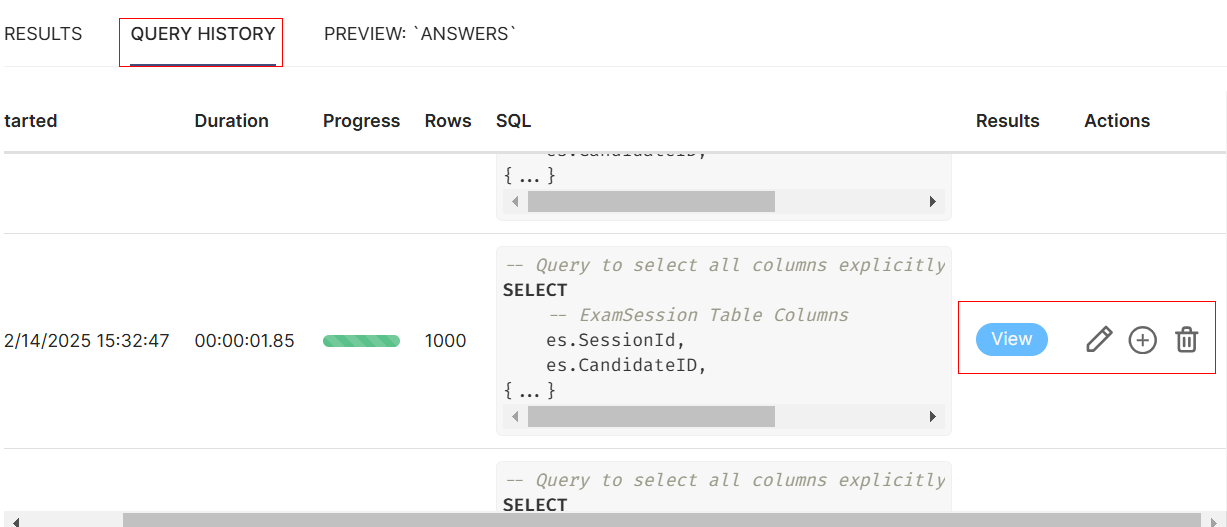
- Click QUERY HISTORY to view the query history, including State, Started, Duration, Progress, Rows, SQL, Results, and Actions.
- State: The status of the query.
- Started: The timestamp indicating when the query execution began.
- Duration: The amount of time taken to execute the query.
- Progress: The completion percentage of the processed query.
- Rows: The number of rows returned by the query.
- SQL: The SQL query that was executed.
- Results: A preview of the query’s output or the number of records retrieved by clicking on the
icon.
- Actions: Available options to interact with the query, such as
overwrite text,
run query in new tab, or
deleting the query.
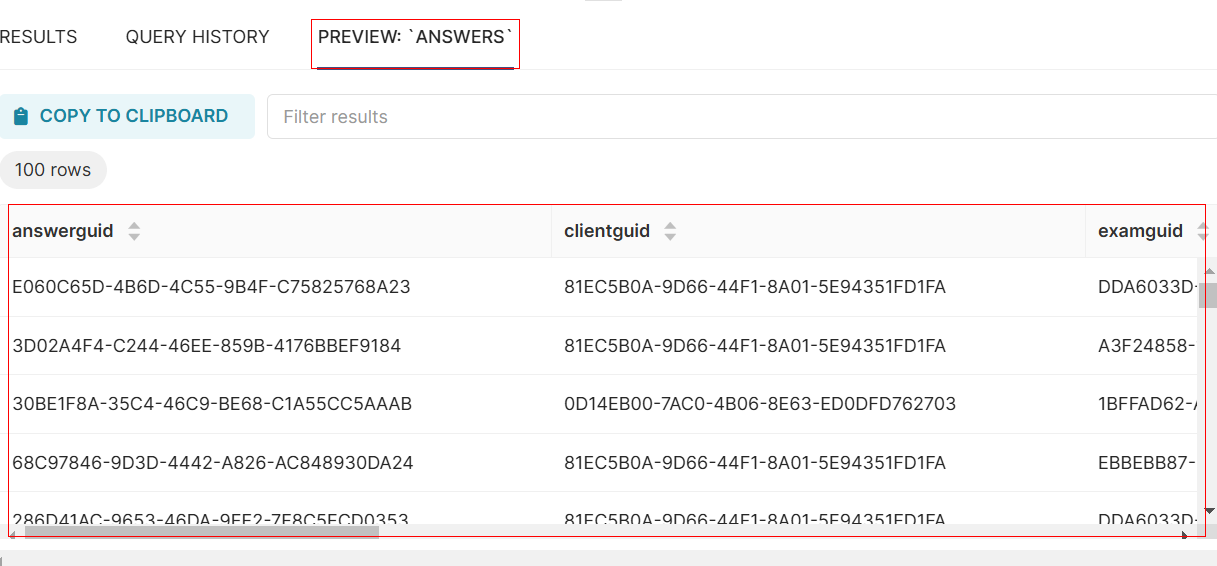
- Click PREVIEW to view query results.