Invite Users
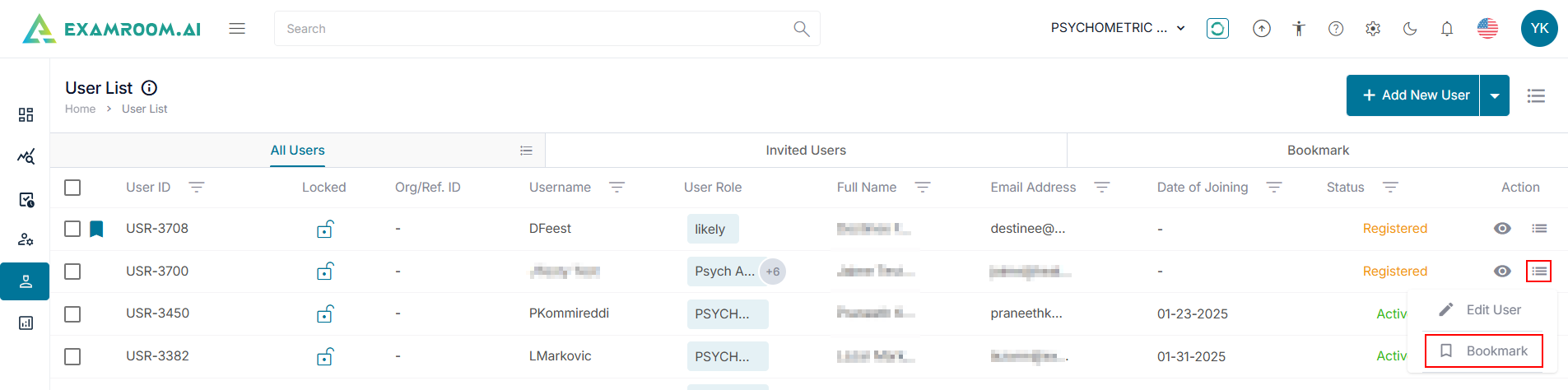
The Invited Users tab displays the list of users invited in the console.
Single User
To invite a single user, follow the steps below:
- Click Users on the left side menu.
- On the User List page, click the
Dropdown icon and select Invite User.
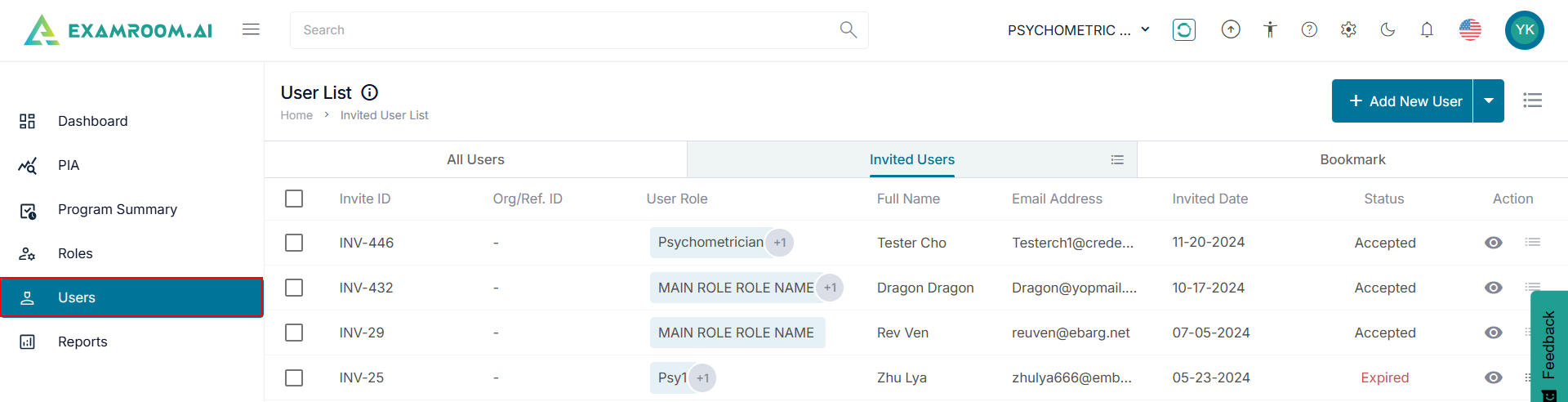
- Select Single User.
- Enter the First Name, Last Name, Email Address, and Org/Ref.ID.
- Select the Assign Role from the dropdown list.
- Click
Calendar to select the Start Date and End Date.
Note: The invited user will be active from the selected start date to the end date.
- Click Send Invite to send the invite to the user. Otherwise, click Cancel to exit without saving.

Group User
To invite multiple users to the console, follow the steps below:
- On the User List page, click the
Dropdown icon and select the Invite User.
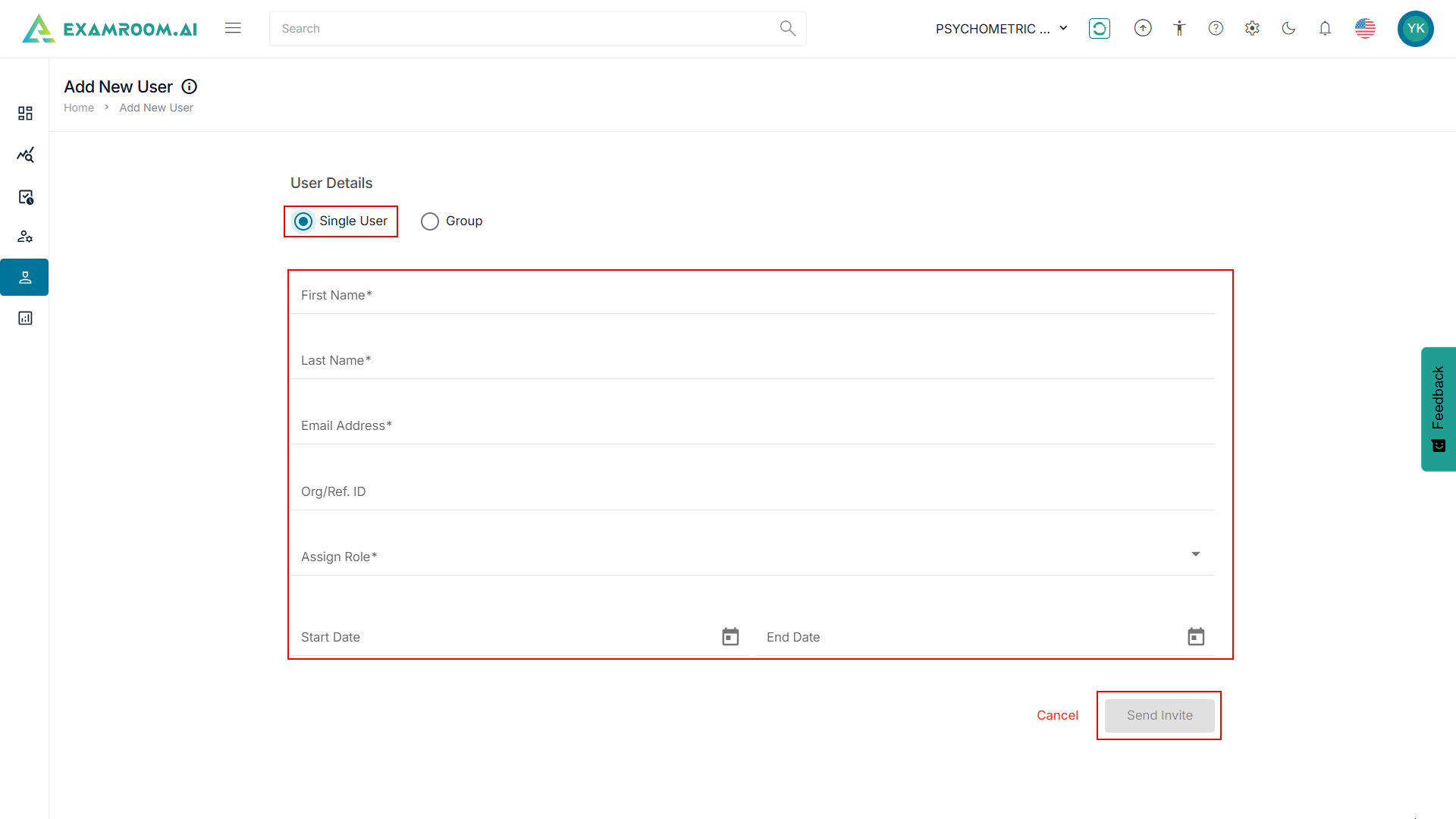
- Select Group to invite multiple users at once.
- Click Download Template to download the group invite template.
- In the downloaded Excel template, enter the Email ID, Org/Ref ID, First Name, Last Name, Assign Role, Start Date, and End Date.
Note:- The invited user will be active from the selected start date to the end date.
- Use the Role sheet to look up role titles. To add the multiple roles, use commas to separate them in the Assign Role Column.
- Save the Excel sheet to your computer.
- Upload the saved Excel file following either one of the options below:
- Drag and drop the Excel file into the box.
- Click in the box to open and select the Excel file from your computer.
- After uploading the Excel file, click Submit to invite the bulk users to the console. Otherwise, click Cancel to exit without saving.
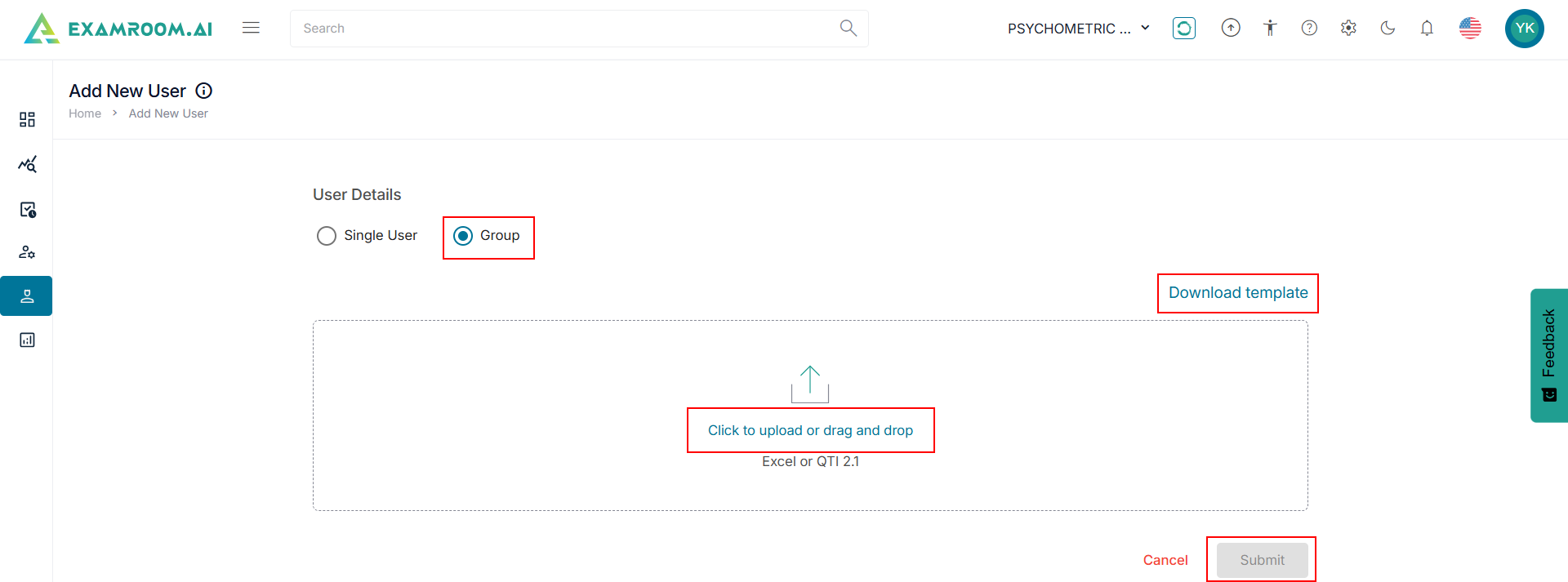
The Bookmark tab displays the list of marked users that are easily accessible for further reference.
To bookmark the users, follow the steps below:
- Click the
icon in the Action column.
- Select Bookmark to bookmark the users and display it under the Bookmark.
- Click Bookmark header to view the added list.