View and Manage Role
The Roles page displays the list of roles that have been created with their assigned permissions. When adding a new user, the role needs to be assigned for user access.
To view and manage Roles, follow the steps below:
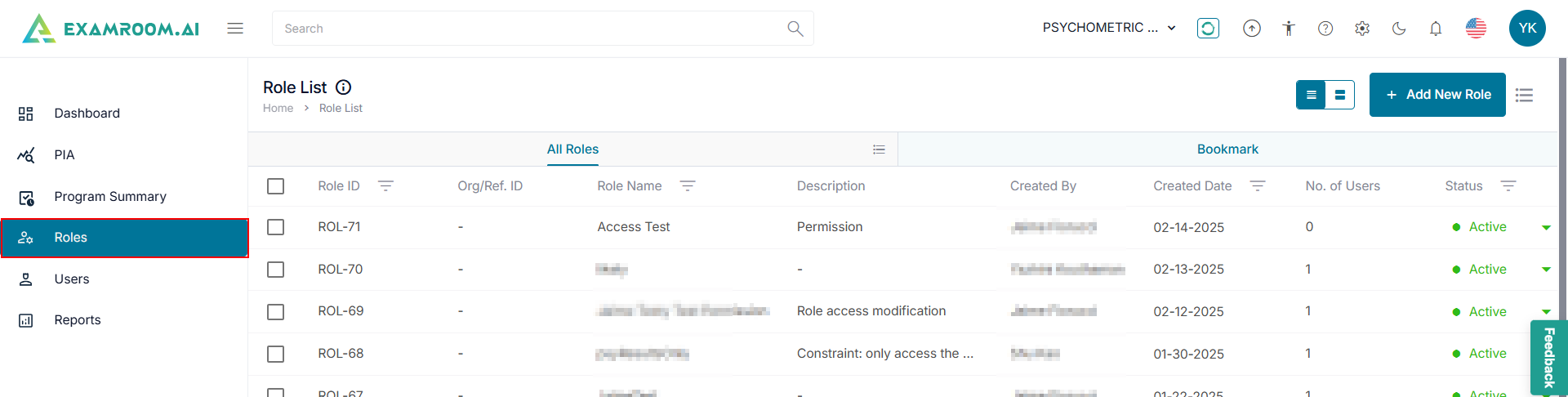
- Click Roles from the left navigation menu.
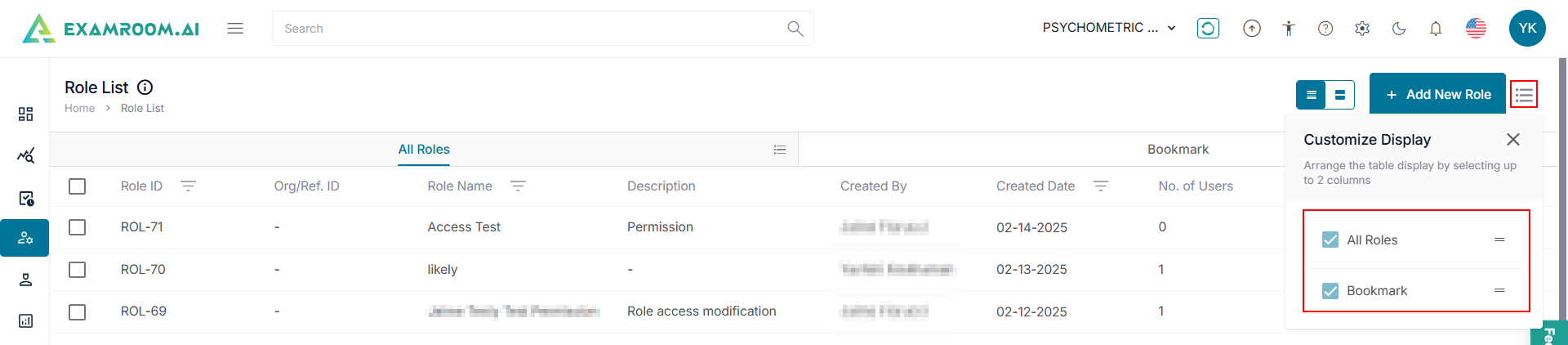
- Click the
icon in the right corner to view the Customize Display for the entire page with either All Roles or Bookmark on the page.
All Roles
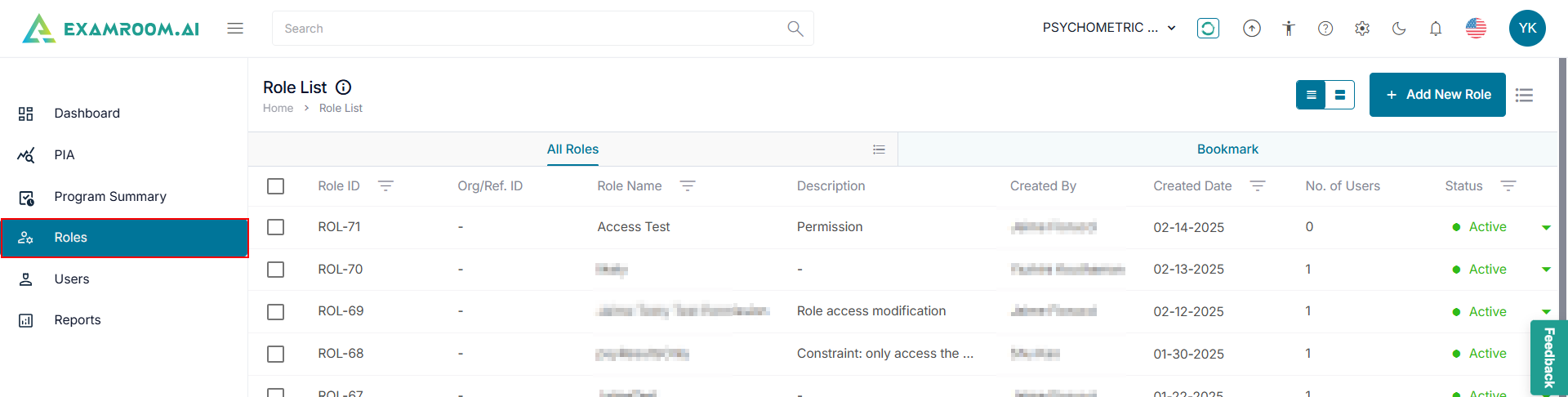
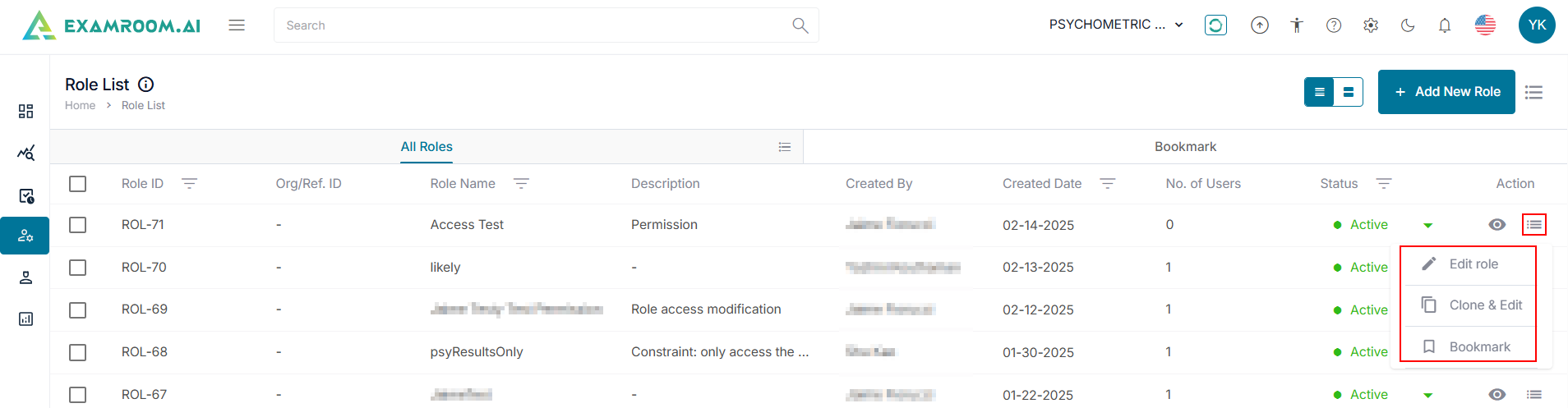
The All Roles section displays the list of all the existing roles including Role ID, Org/Ref. ID, Role Name, Description, Created By, Created Date, No. of Users, Status, and Action.

- Role ID: Unique ID generated when a new role is created.
- Org/Ref. ID: Organization or the reference ID.
- Role Name: Name of the role created.
- Description: Short description of the role.
- Created By: Who created the role.
- Created Date: Date when the role was created.
- No. of Users: Number of users assigned to the role.
- Status: Status of the role.
- Active: When the corresponding role is active.
- Inactive: When the end date expires or when the role is inactivate.
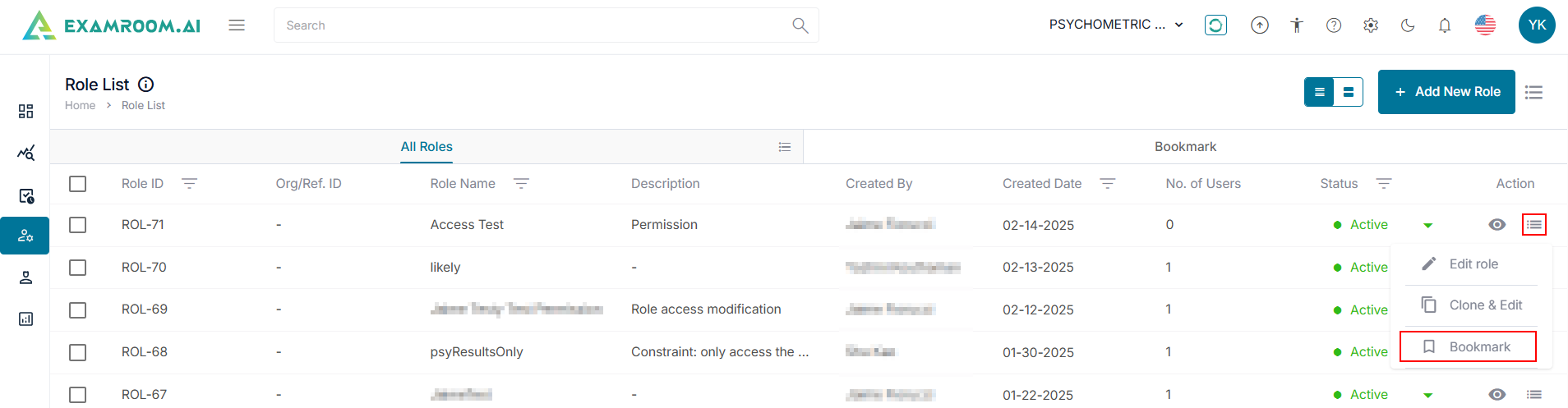
- Action: Where you can
View,
Edit Role,
Clone & Edit, and
Bookmark/Unbookmark the roles.
Note: On the All Roles page, use the below option to customize the roles list:- To view the Customize Display of the table items, click
icon at the right corner in the All Roles tab and select the required check box to display specific column information.
- Select
Grid View on the top right corner of the page to change the display of the same contents.
- To view the Customize Display of the table items, click
Edit Role
- On the All Roles list, click
icon in the Action column.
- Click Edit Role to edit the role information.
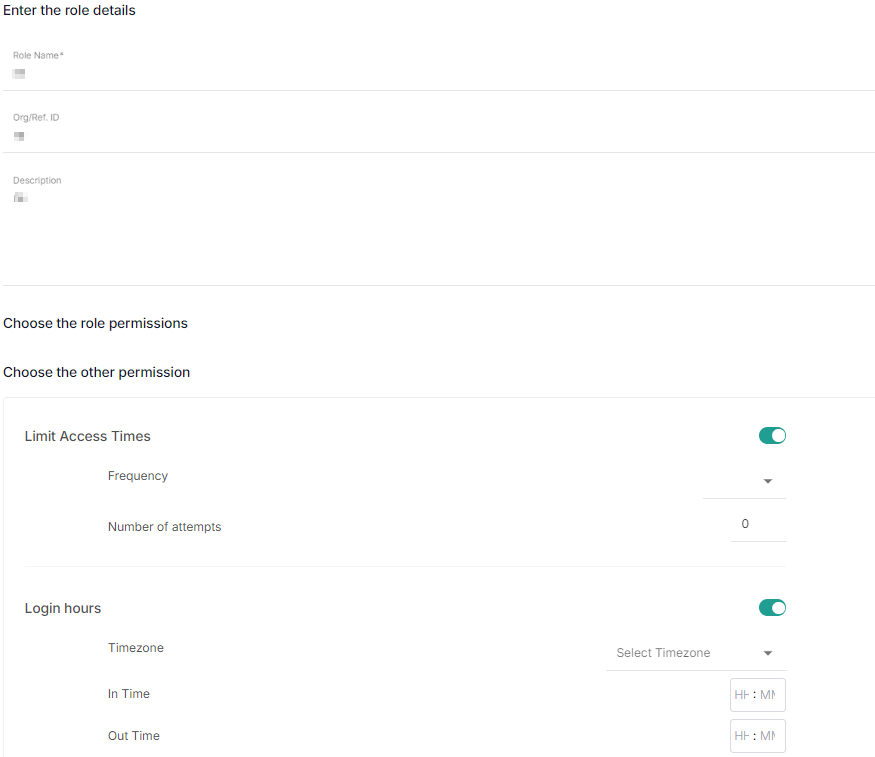
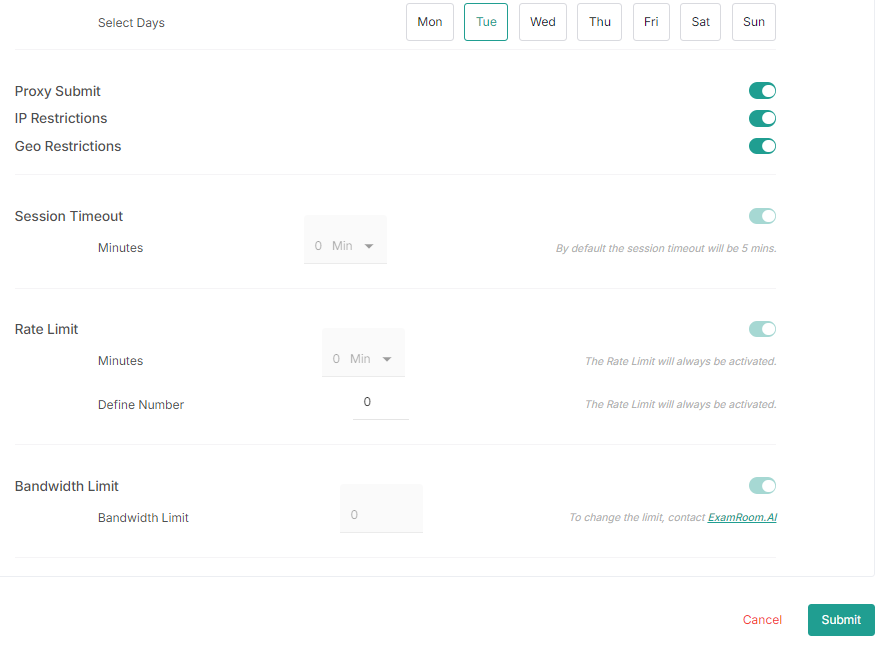
- In the Role details page, you can modify the Role details and Permissions.
Note: The system does not allow the creation of multiple roles with the same title and permissions. - Once all the fields are edited, click Submit to save the changes. Otherwise, click Cancel to exit without saving.
Clone & Edit
The Clone & Edit option allows you to clone an existing role and then modify creating a new role.
To create a new role by cloning, follow the steps below:
- On the Role List page, click the
- Next, you will be directed to the Add New Role page. For more information, click Add New Role.
View Bookmark
The Bookmark tab displays the list of bookmarked roles for further reference.
To access the bookmarked roles, follow the steps below:
- Click Bookmark on the Role List page to view the Role ID, Org./Ref. ID, Role Name, Description, Created By, Created Date, No. of Users, Status, and Action.
- Role ID: Unique ID generated when a new role is created.
- Org/Ref. ID: Organization or the reference ID.
- Role Name: Name of the role created.
- Description: Description of the role.
- Created By: Who created the role.
- Created Date: Date when the role was created.
- No. of Users: Number of users assigned to the role.
- Status: Status of the role.
- Active: When the role is active.
- Inactive: When the end date expires or when the role is made inactivate.
- Action: Where you can
View,
Edit role,
Clone & Edit, and
Bookmark/Unbookmark the roles.
Note: On the Bookmark tab, use the below option to customize the roles list:- To view the Customize Display of the table items, click
- Select
Grid View on the top right corner of the page to change the display of the same contents.
- To view the Customize Display of the table items, click

Bookmark a Role
To bookmark the roles, follow the steps below:
- Click Role from the left side menu.
- Select the Role you want to bookmark from the All Roles table.
- Click the
icon in the Action column.
- Click Bookmark to bookmark the Role ID and to display it under the Bookmark section.