Creating a Report
To create a report, follow the steps below:
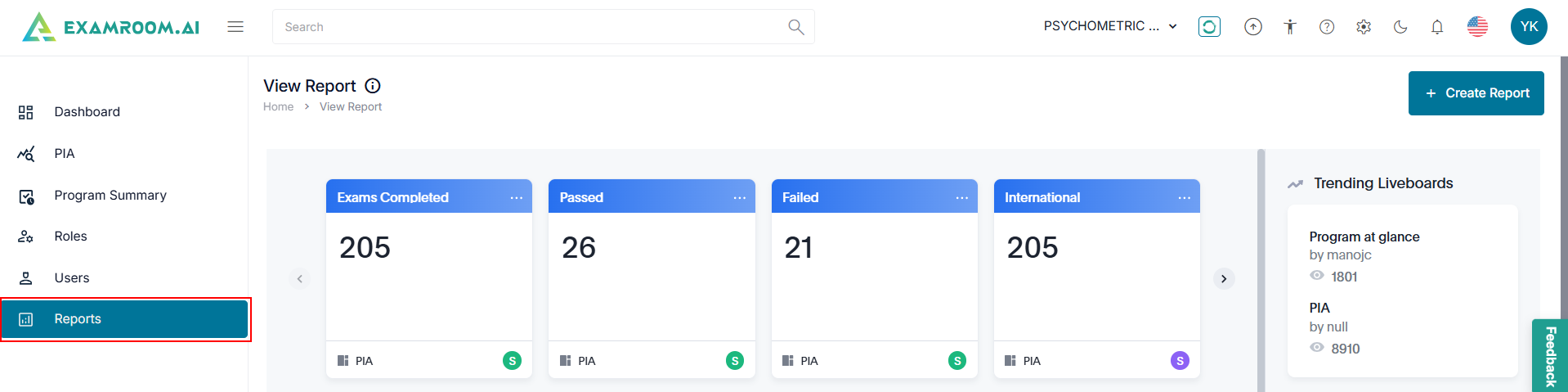
- Click Reports from the left navigation menu.
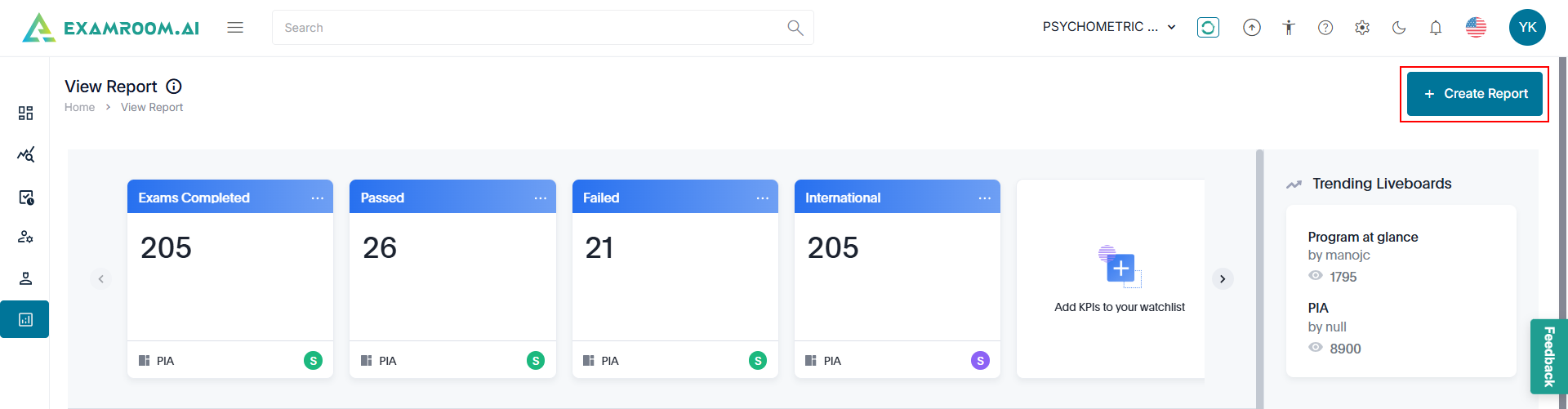
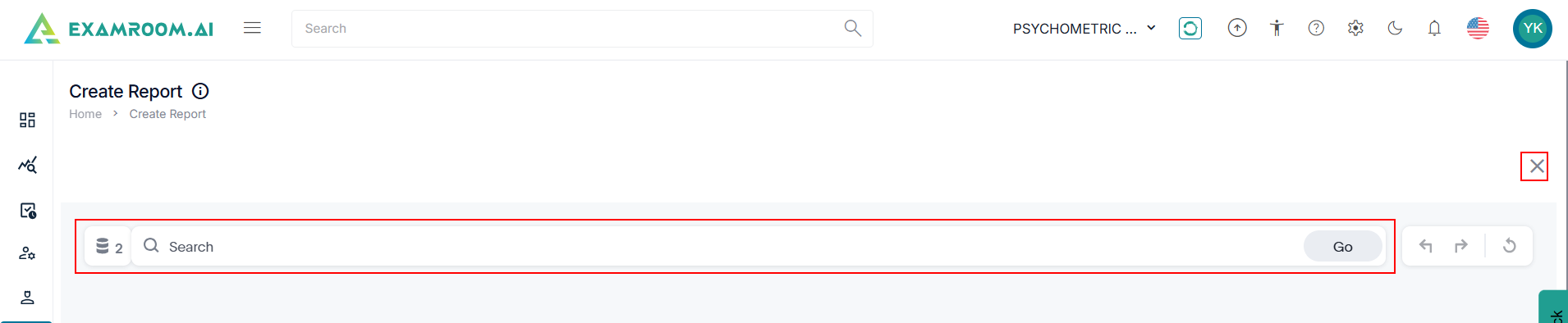
- Click +Create Report on the Reports page.
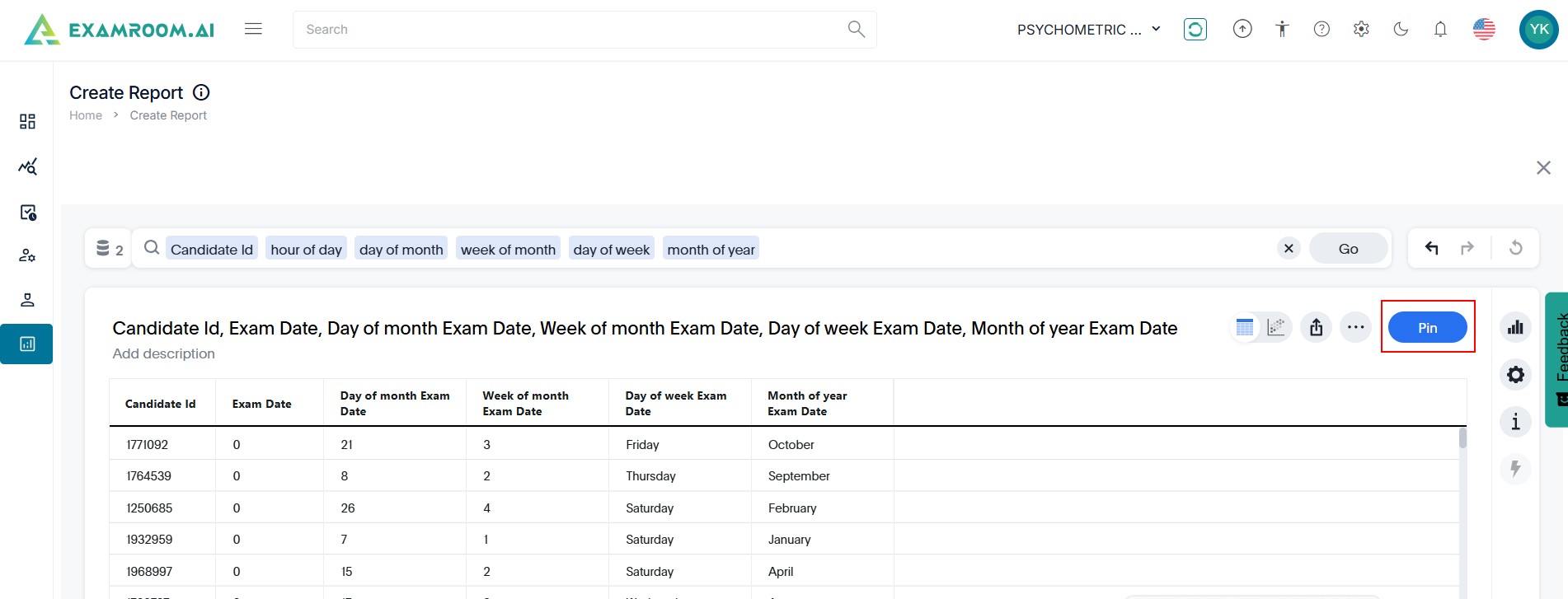
- Enter the keyword in the search bar or click
Data to choose the filter options including Sources, Formulas, and Parameters to refine the data.
- Click Go. Otherwise, click the X to exit without saving.
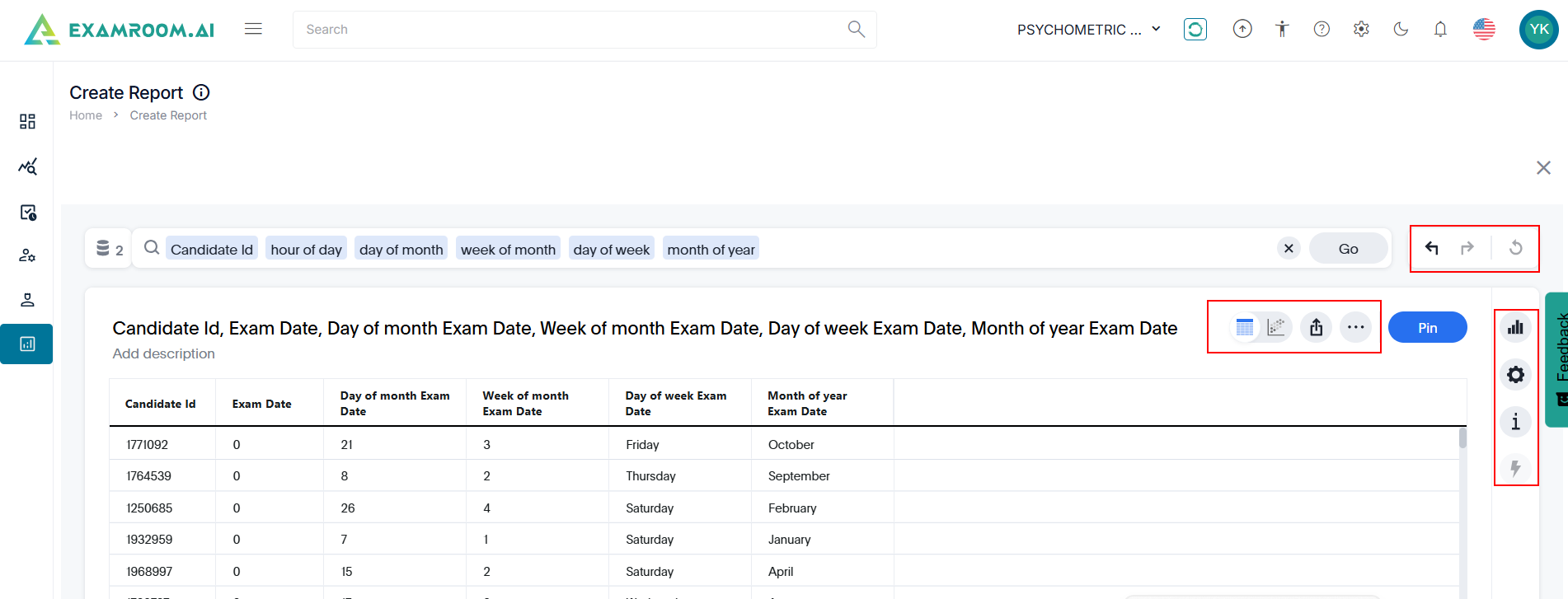
- View the following icons to the right of search bar on Create Report page:
Clear the current keyword in the search box.
Revert the most recent action in the search box.
Reapplies the action that was undone in the search box.
Reloads or updates the search query with the latest data.
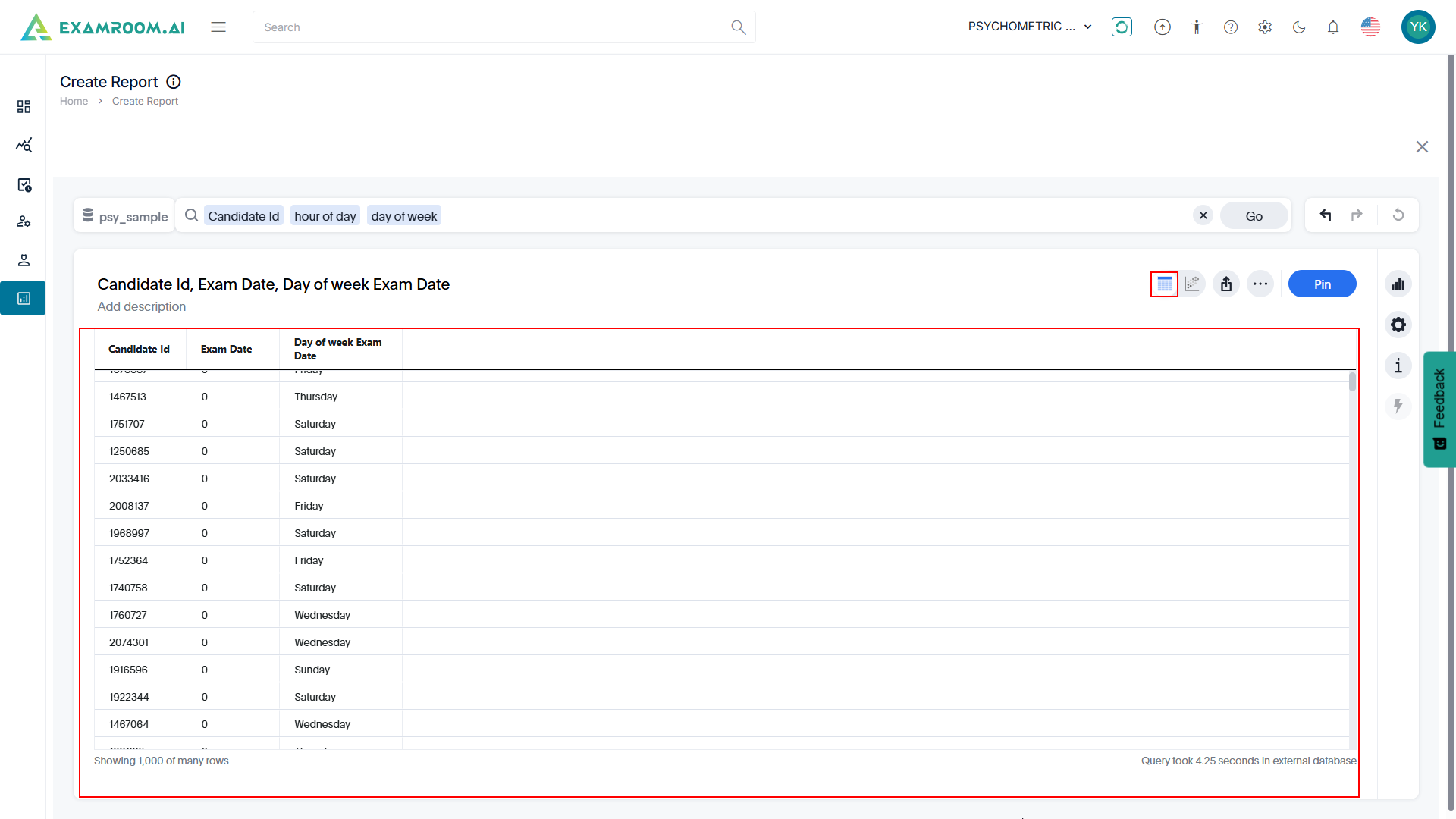
- Click the
View Table icon to view the report in a tabular format.
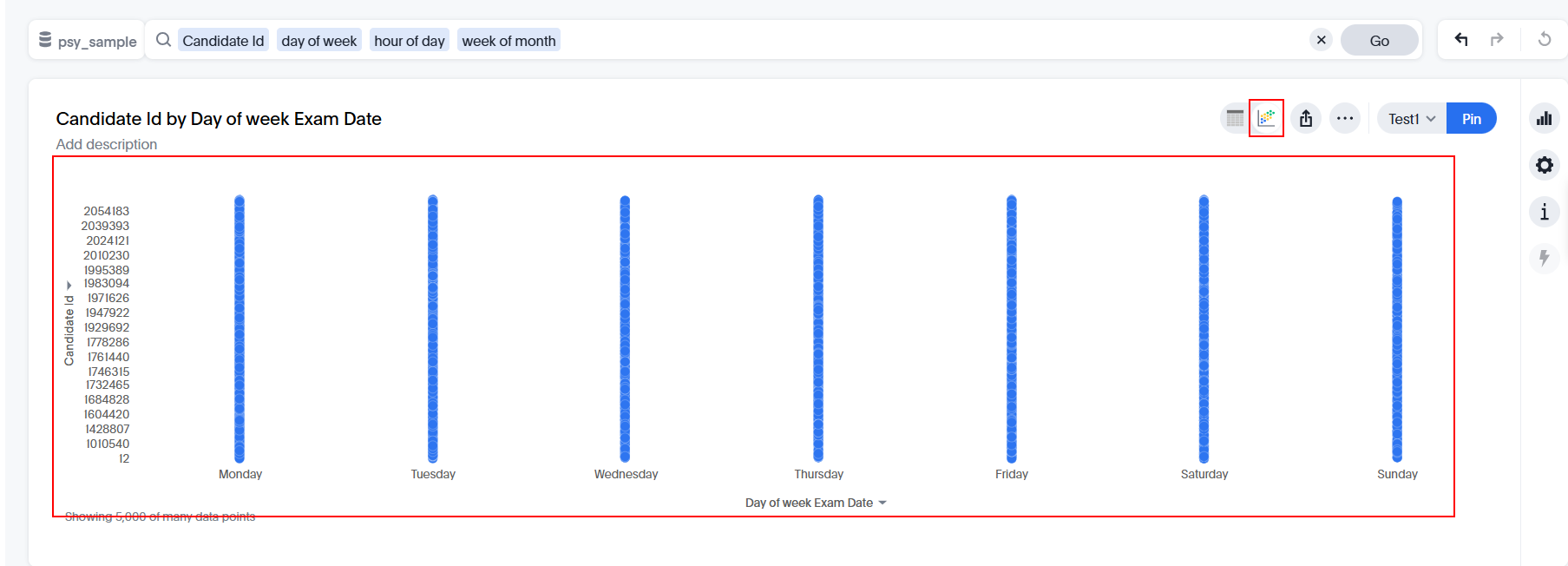
- Click the
View chart icon to present the report as a chart or graph.
- Click the
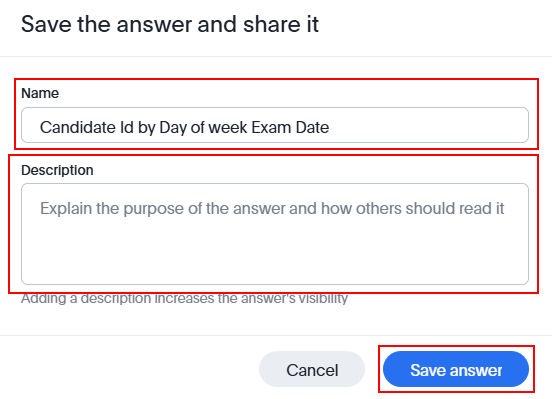
icon to share the report with others.
- Enter the Name and Description.
- Click Save Answer to save the responses. Otherwise, click Cancel to exit without saving.
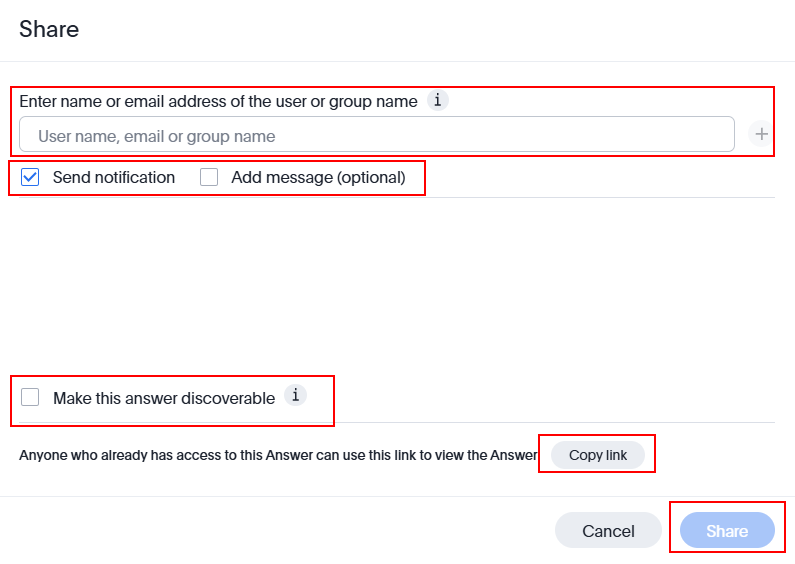
- Enter the username, email, or group name to share the data with.
- Check the Send Notification checkbox to send a notification.
- Click Add Message to include additional information.
- Click Make this answer discoverable so users in the same group with access to the data source can access the answer.
- Click Copy Link to copy the link.
- Click Share to share the data.
-
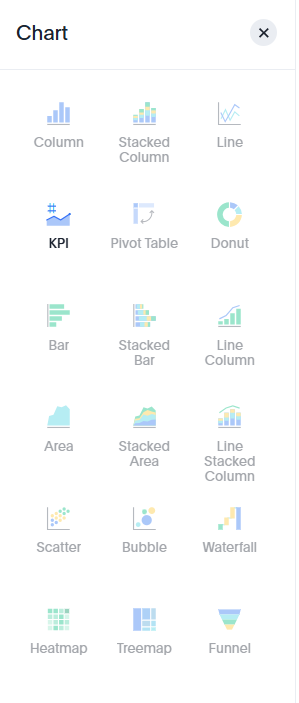
Modifies the way the data is visualized (e.g., switching from a bar chart to a pie chart).
Note: The AI-based graph will be disabled based on the data selection. Provides options to customize the chart, such as adjusting the axis, labels, or data series.
Displays the details of the query used to generate the report, often including the filters, parameters, or database calls.
- Click the
Adding the Report to Liveboard
Liveboards are a complete set of varying graphs.
To add the report to the live board, follow the steps below:
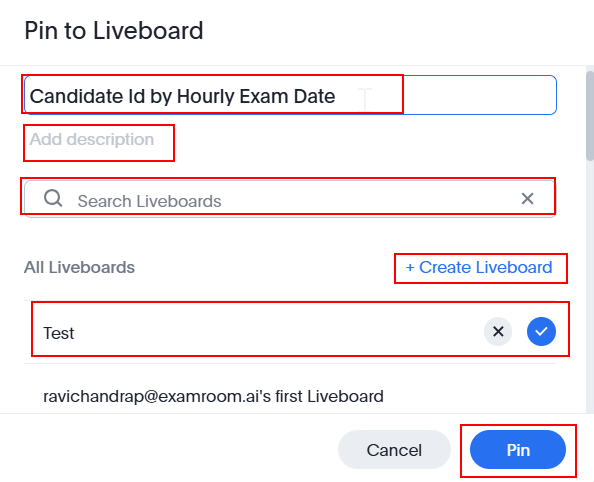
- Click the Pin button to add the report to the Liveboard and provide the required details in the Pin to Liveboard popup window.
- In the Pin to Liveboard popup window, edit the title of the report, if required.
- Add the description of the report in the Add Description field.
- Enter a keyword in the Search Liveboards field to add the report to an existing liveboard, or click on +Create Liveboard, enter a name for the new liveboard, and click icon to create.
- After selecting the liveboard, click Pin to add. Otherwise, click Cancel to exit without saving.