List Role – ExamIQ
The List Role section is dedicated to creating user roles and to set up permissions based on the role.
View and Edit Role Records
To view, edit, and manage existing roles and permissions, follow the steps below:
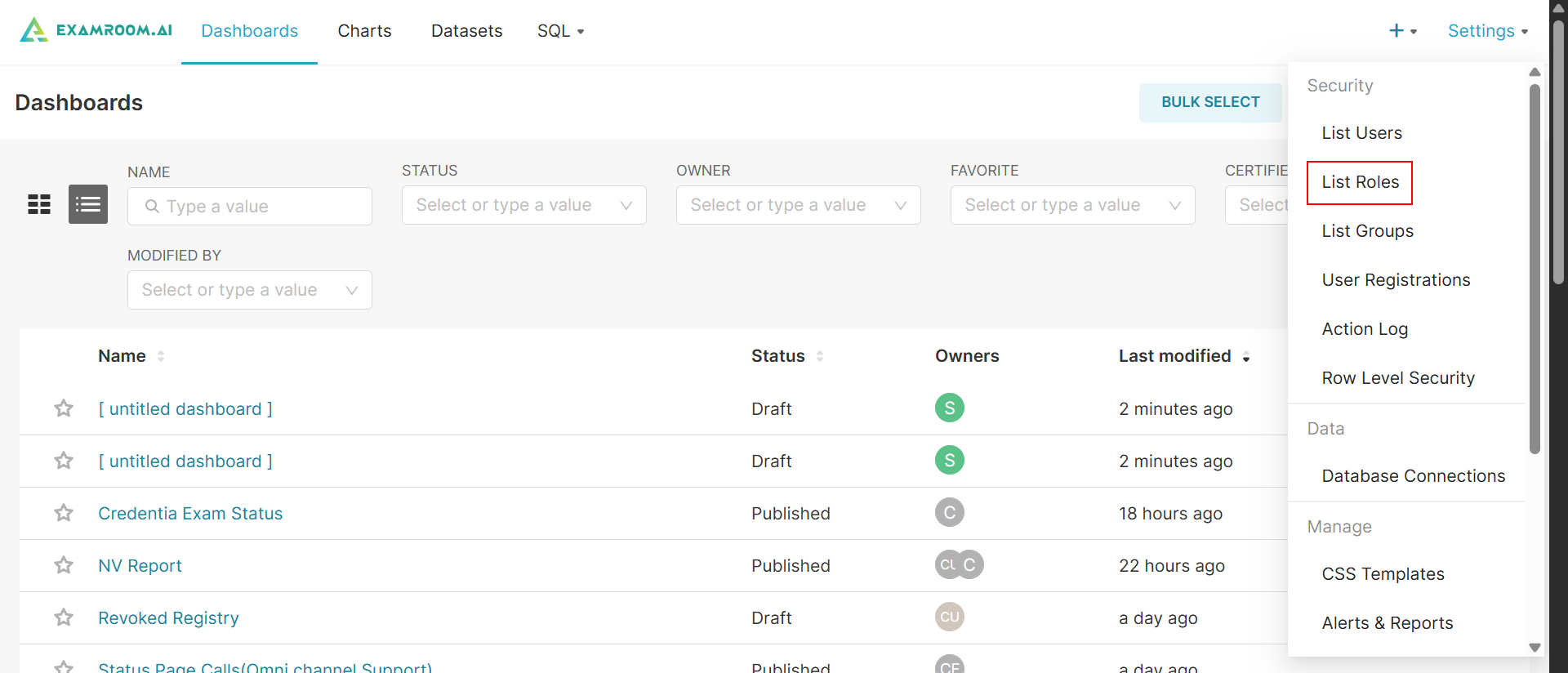
- On the ExamIQ, click Settings at top right corner of the screen and click List Roles to navigate to the List Roles section.
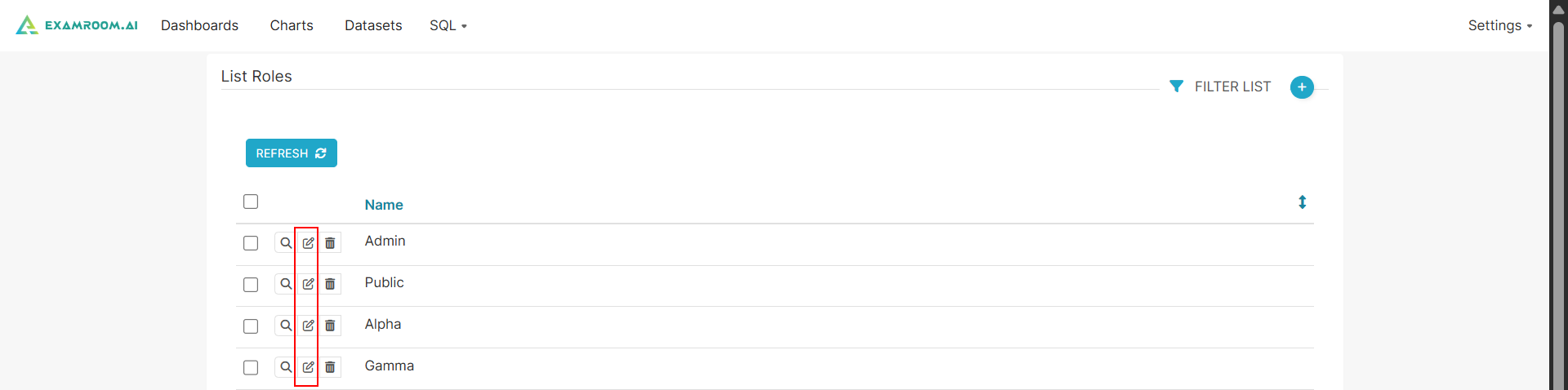
- In the List Roles section, you can view all the existing roles and modify the permissions.
- To edit a role, click the Edit Record icon provided at the left side of the table column.
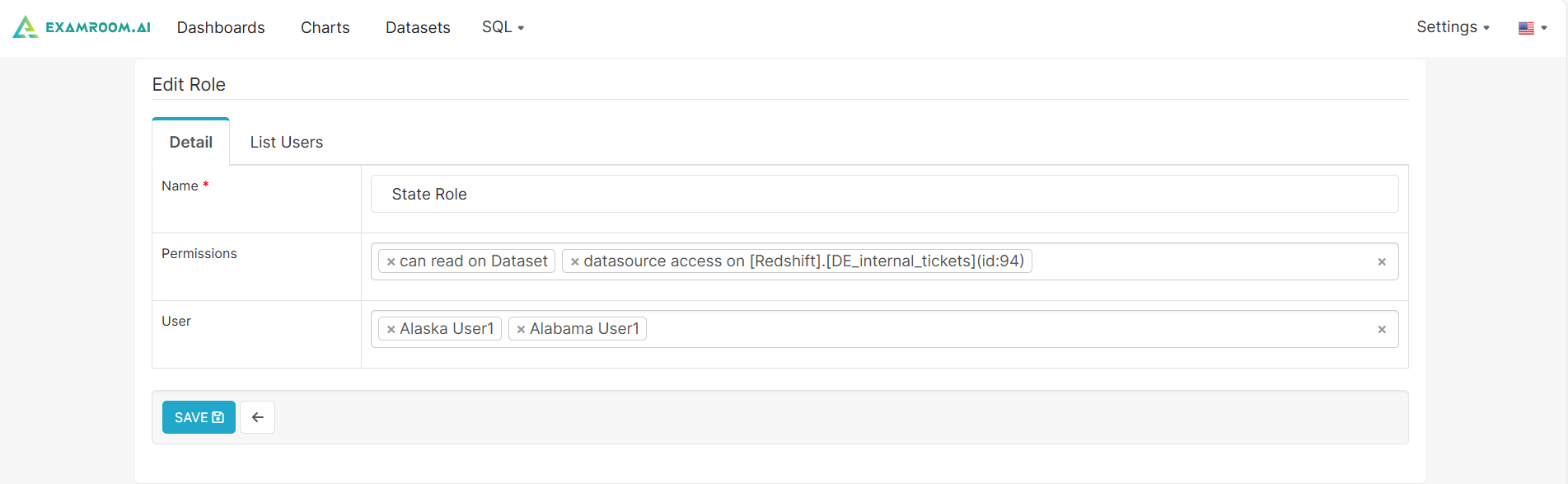
- In the Name field, you can modify or update the specified role name.
- In the Permissions section, add or remove the permissions.
- In the User section, add the user for the selected role.
- Click Save to save the changes. Otherwise, click the Back icon to go back to the previous page without saving.