PIA
On the PIA page, you can view, review, and submit item reports based on the selection. If an issue is detected, the item can be removed from the delivery pool and modified for a subsequent release.
Accessing the PIA
To access the PIA, follow the steps below:
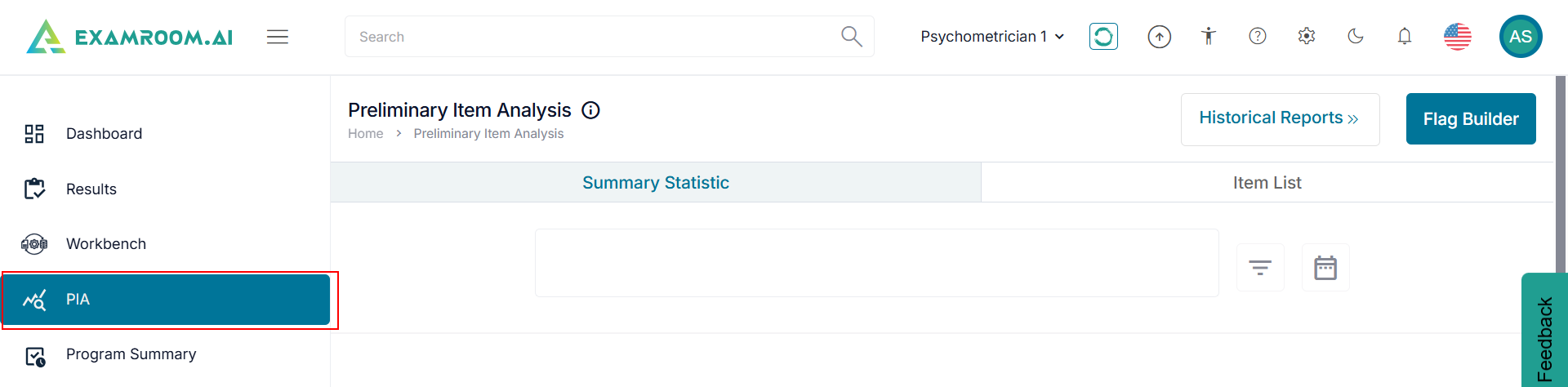
- Click PIA from the left side menu.
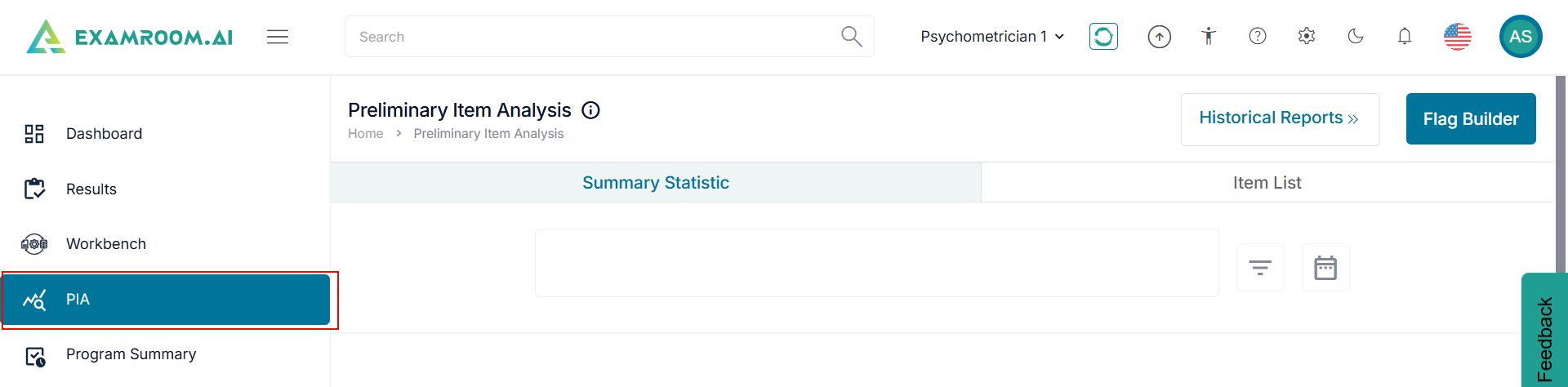
The PIA options include:
- Summary Statistics: Displays data summary of items.
- Item List: Displays the number of items flagged based on the severity and parameters chosen.
- Historical Reports: Displays the history of submitted PIA reports.
- Flag Builder: Displays the list of existing PIA flags.
Summary Statistics
The Summary Statistics page displays a data summary of the items based on the selection. It helps to add parameters for better visualization and the addition of a third-dimensional column.
To view the summary statistics, follow the steps below:
- Click PIA from the side menu to access the Summary Statistic tab.
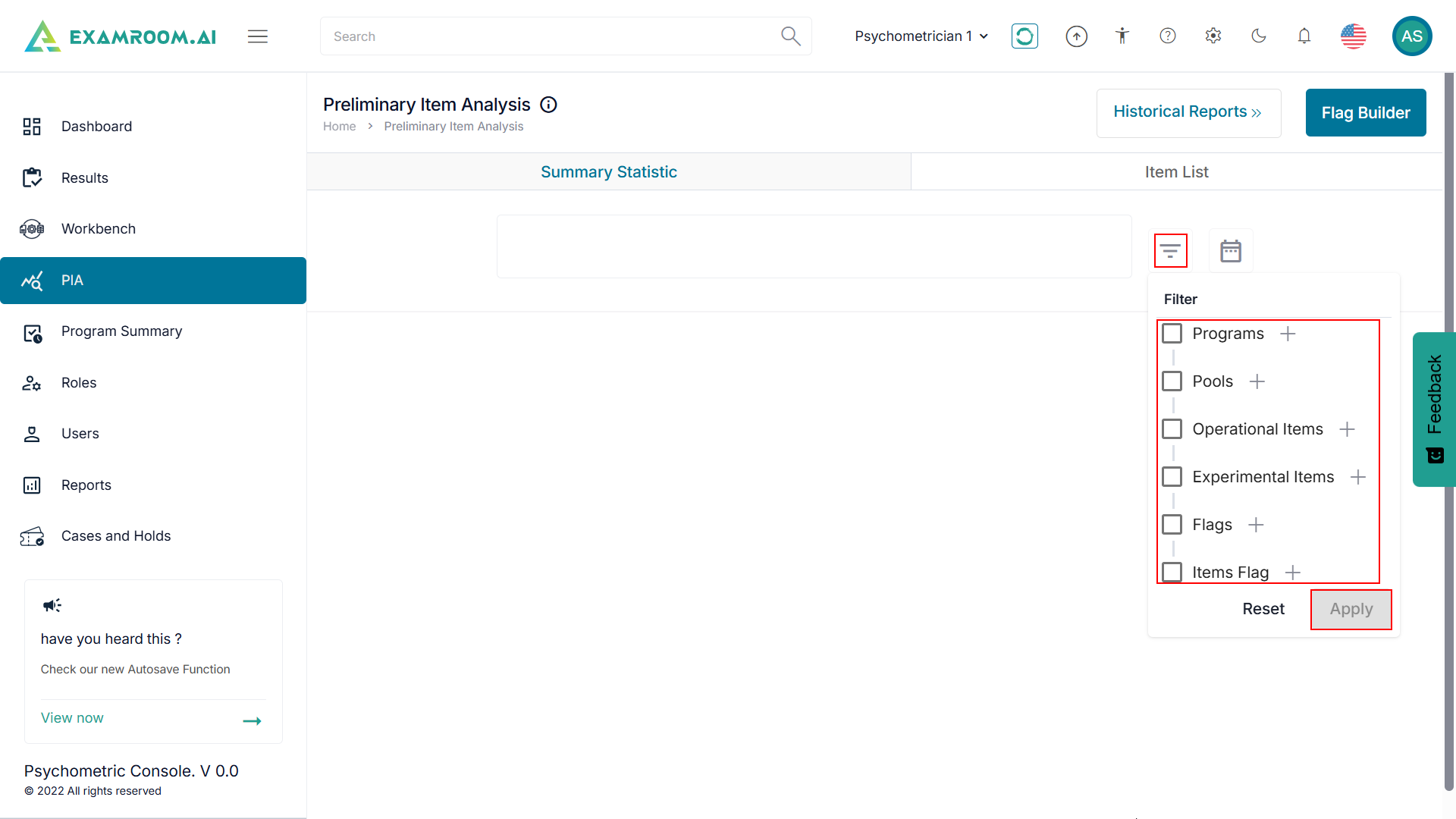
- Click
Filter and select the required check boxes.
- After selecting the check boxes, click Apply to apply the filters. Click Reset to remove the selections.
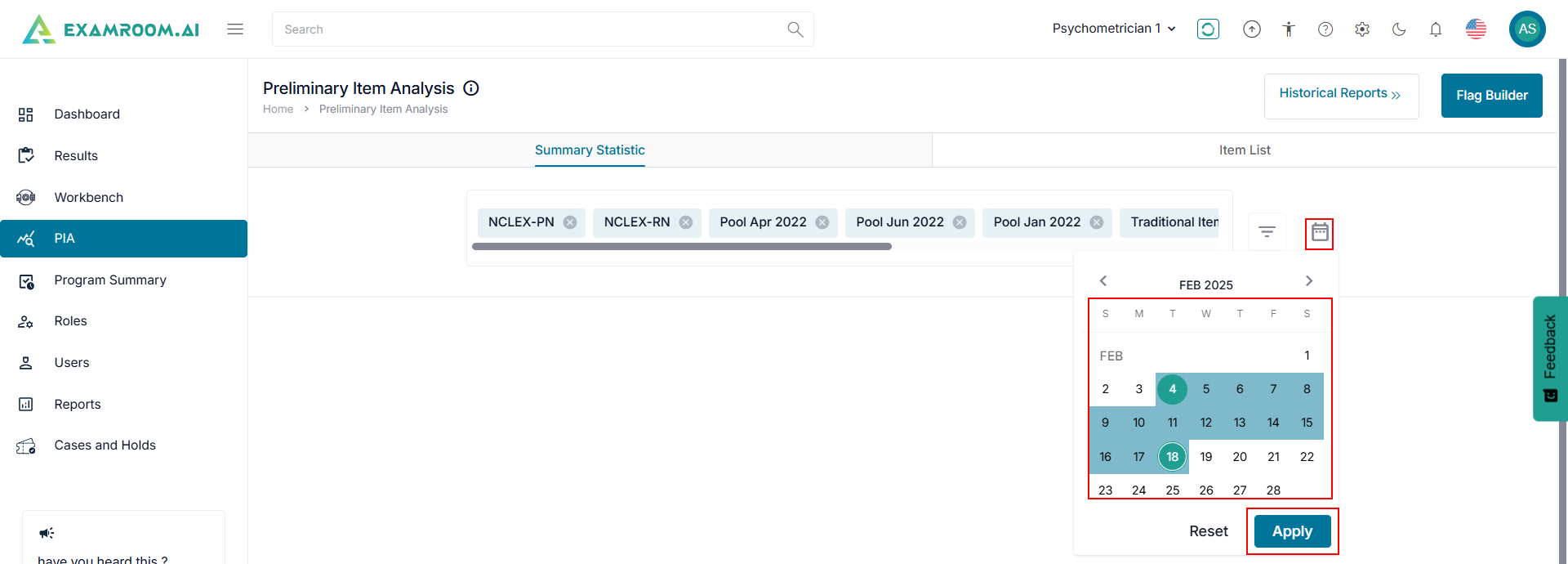
- Click the
Calendar icon to select the Date Range. Click Apply to set the date filter. Click Reset to clear the selected dates.
- Once you have entered the information, you can review the following summary statistics:
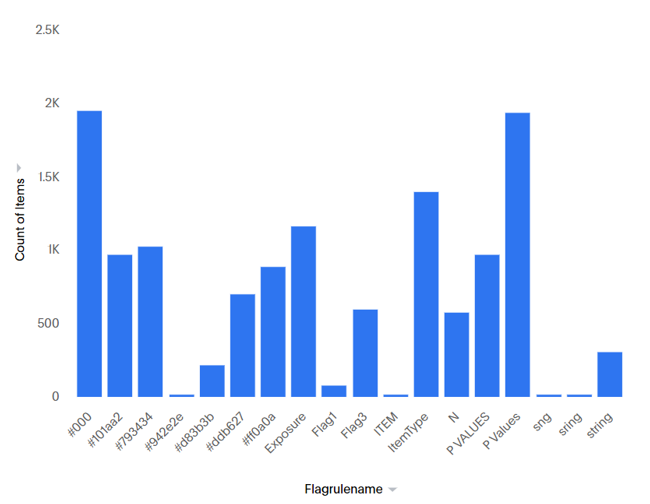
- Count of Items by Flag rule name: The graphical representation that displays the count of the items against the flag rule name.
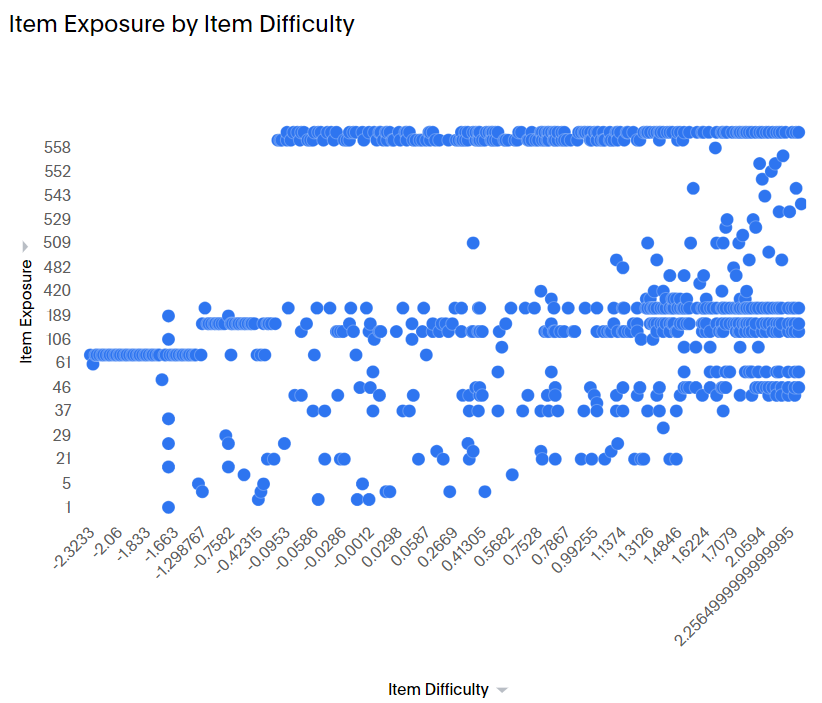
- Item Exposure by Item Difficulty: The graphical representation of the item exposure and its difficulty.
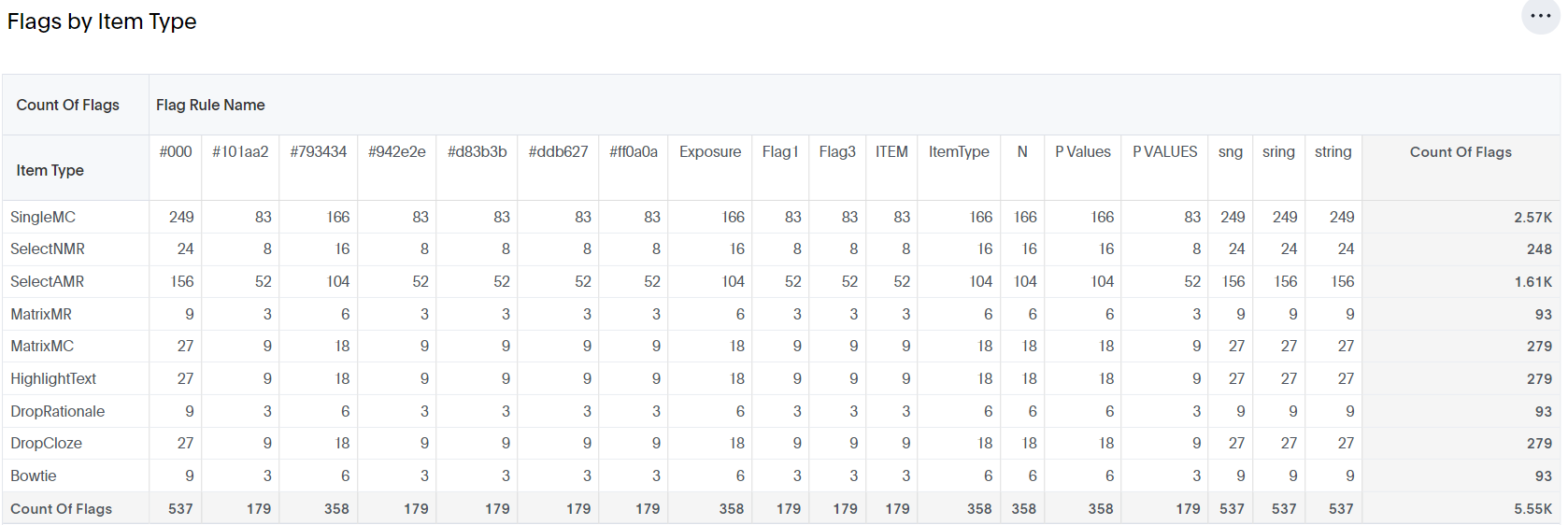
- Flags by Item Type: Shows a list displaying the number of items categorized by item types, along with flag names and flag rule names for each item type.
- Count of Items by Flag rule name: The graphical representation that displays the count of the items against the flag rule name.