
Settings
The Settings window, located in the upper tool bar, offers access to customize, review, and navigate settings for your account, organization, users, and processes.
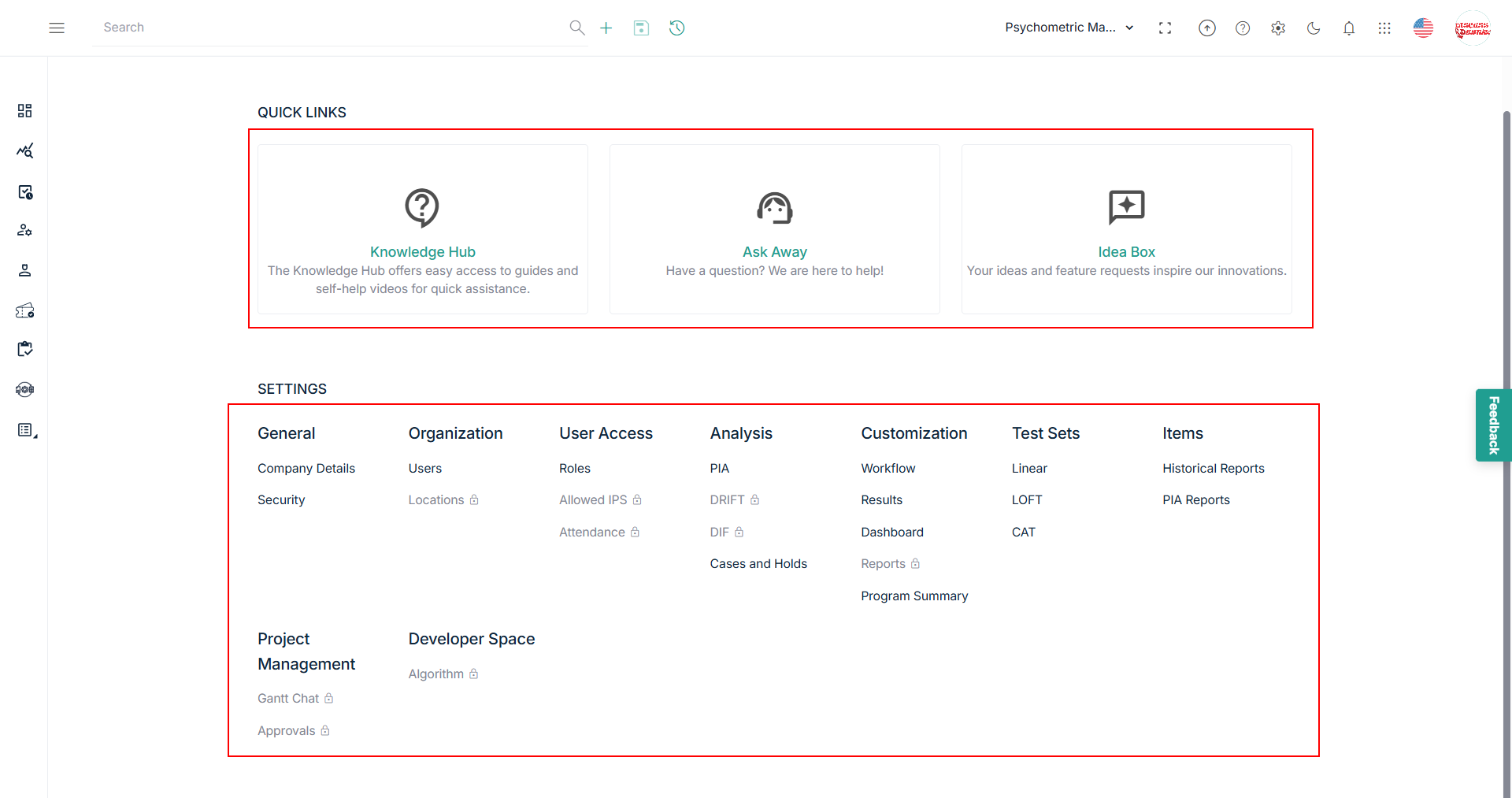
Quick Links
Provides easy and direct access to additional resources.
- Knowledge Hub: Access comprehensive documentation, user guides, and product videos to help you navigate and utilize the Skrive Console effectively.
- Ask Away: A dedicated support channel where you can submit queries, seek assistance, and get quick resolutions from the support team.
- Idea Box: Share your suggestions, feature requests, and feedback to help improve the platform and contribute to future enhancements.
General
In the General section you can view the general information and security details of the users.
- Company Details: This section provides the Company Name, Industry, Phone, Email Address, Address, Super Administrator Email Address, Email Setting, Local Setting, Display Settings, Chat Settings, and Notification Settings
- Security: This section provides access to set up and modify your profile security. For more information, click Security.
Organization
This section provides the organizational details of the Users and Locations.
- Users: Click to view, modify, and manage users. For more information, click Users.
- Locations: Click to view and manage locations. (TBD)
User Access
This section provides user access details such as Roles, Allowed IPs, and Attendance.
- Roles: Click to view and manage roles. For more information, click Roles.
- Allowed IPs - Click to view and manage IP restrictions and access. For more information, click IP Restrictions
- Attendance: Click to view and manage the attendance requirements for users and assigned roles. (TBD)
Analysis
From the Analysis option in the settings menu, you can review and manage PIA, Drift, and DIF.
- PIA: Click to navigate to the PIA page to view and manage PIA. For more information, click PIA.
- DRIFT: (TBD)
- DIF: (TBD)
- Case and Holds: From the Cases and Holds option on the settings menu, you can manage cases and psychometric holds.
Customization
From the Customization option in the settings menu, you can manage Workflows, Results, the Dashboard, Reports, and Program Summary.
- Workflow: Configure and manage workflows to define the approval process for item development. For more information, Workflow - Approval Process
- Results: Click to navigate to the Results page to view or modify report presentations. For more information, click Results.
- Dashboard (TBD)
- Program Summary: Click to navigate to the Program Summary page to view and customize visual presentations, pin reports to the dashboard, and add to Liveboard. For more information, click Program Summary.
Test Sets
- Linear: Click to navigate to all Linear Test Forms page to view linear test sets.
- LOFT: Click to navigate to all LOFT Test Forms page to view loft test sets.
- CAT: Click to navigate to the all CAT Test Forms page to view cat test sets.
Cases and Holds
From the Cases and Holds option on the settings menu, you can manage cases and psychometric holds.
- Psychometric Holds: Navigate to the Psychometric Holds page to review and manage holds. - TBD
Items
From the Items option on the menu settings, you can manage Historical Reports and PIA Reports.
- Historical Reports: Click to navigate to the Historical Reports page to review past reporting and analysis. For more information, click Historical Reports.
- PIA Reports: Click to navigate to the PIA Reports page to review PIA, Item List, Historical Reports, and Flag Builder. For more information, click Reports.
Developer Space
From the Developer Space option on the settings menu, you can create, edit, and review algorithms.
- Algorithm: Navigate to the Algorithm page to add, view, and edit algorithms. - TBD