
Toolbar - Explore the User Interface
This section describes the Psychometric Console's user interface. It lists the common features and widgets found across its modules.
Click the icons in the toolbar at the top of the screen to explore the various options available:



To navigate through the console, click the widgets on the left side menu to perform different tasks.
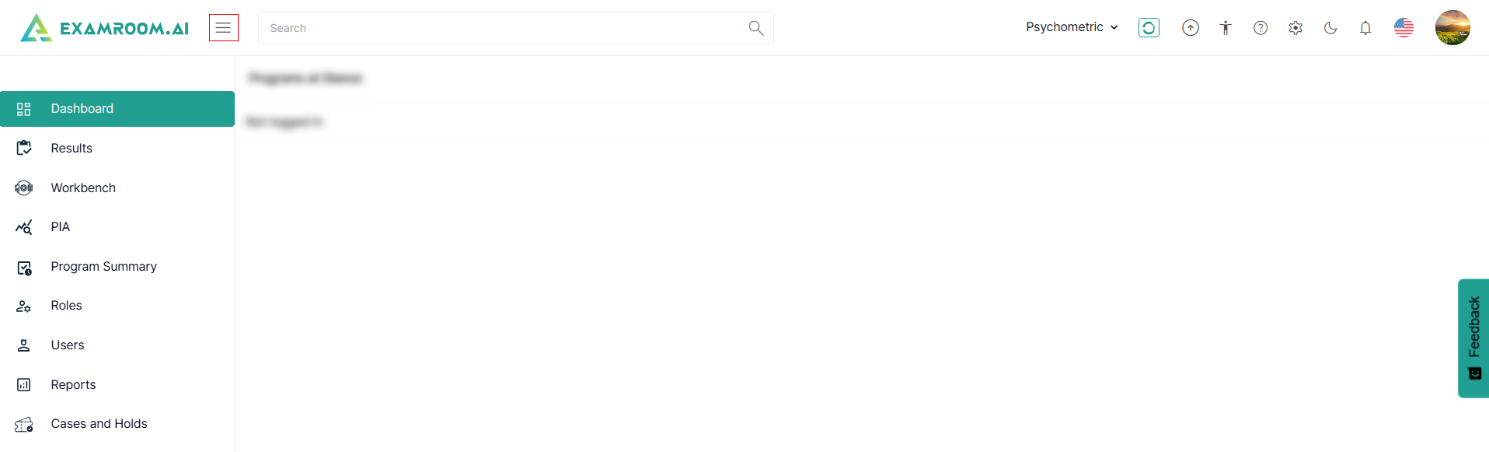
- Dashboard is the home screen of the console to view saved reports and review at-a-glance information.
- PIA where you can review, create, and submit PIA and reports.
- Program Summary section allows customized visual presentations of programs, pin reports to dashboard, and add to Liveboard.
- Roles console functionalities include creating new roles, managing role status and details, and bookmarking role information.
- Users console provides management of all users in the Psychometric Console.
- Cases and Holds section of the Psychometric Console allows users to review, manage, and take necessary actions on flagged cases or held assessments.
- Results to review candidate exam results and performance overview.
- ExamIQ is a data exploration and visualization platform used for creating interactive dashboards and performing advanced analytics on large datasets.